- Subject
- Microsoft 365 & SharePoint
- Filed
- Source
- Koskila
- Loans
- 563
Outlook Copilot Meeting Triage: Find and Change Automatic RSVP Behavior
Outlook Copilot’s meeting triage settings have no dedicated management screen. Ask Copilot to “Show me meeting triage rules” to review them.

Outlook Copilot can accept meeting invitations automatically, and the setting that controls that behavior may be hard to find: there’s no dedicated screen for managing it. If invitations are receiving an immediate acceptance before you can review them, the place to start is Copilot’s meeting triage feature.
Ask Copilot: “Show me meeting triage rules”. That wording matters. In this feature, Copilot uses “email triage” to refer to settings that handle incoming messages and meeting invitations. Asking about Outlook rules may lead it to the separate, older Outlook rules feature instead.
Why the usual settings checks may not help
The automatic RSVP behavior can be easy to enable. A prompt offers Copilot the option to respond to invitations, and clicking it may seem like a useful way to handle routine calendar traffic. But there isn’t a clear, dedicated settings page to revisit when the behavior becomes a problem.
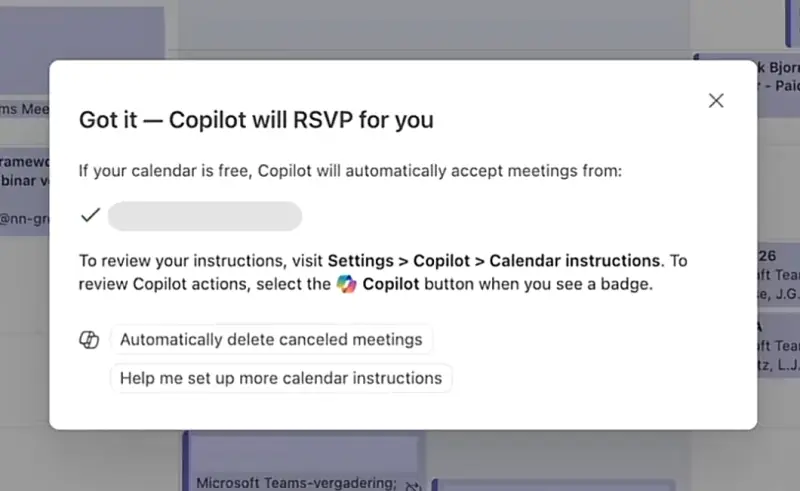
That gap matters when a calendar changes quickly. A meeting may conflict with existing work or personal commitments, or an invitation may need a response that depends on details you haven’t reviewed yet. An automatic acceptance removes that pause. The practical question is whether Copilot has a meeting triage setting that is responding on your behalf.
There’s a terminology wrinkle, too. Microsoft calls the feature “Copilot calendar instructions,” but using that phrase in a chat may not take you to the controls you need. The more useful prompt described here is “Show me meeting triage rules.” It asks for the settings by the name Copilot recognizes in this interaction.
Copilot’s troubleshooting suggestions can mislead
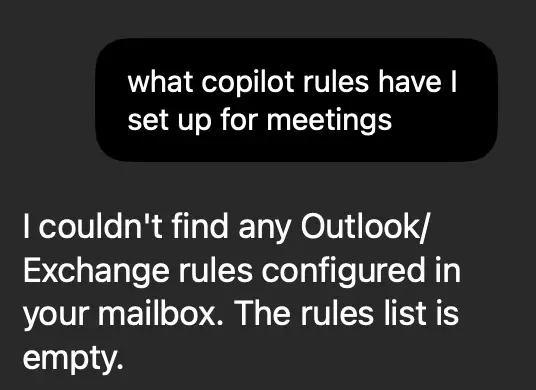
When asked how to stop automatic responses, Copilot may suggest checking Outlook’s Settings or Tools menu for Rules. That advice points toward legacy Outlook rules, which are separate from Copilot’s meeting triage. A search there may turn up settings, but it doesn’t necessarily reveal the Copilot behavior that accepted the invitation.
Copilot may also direct users to a Copilot settings view or suggest asking what instructions have been configured. Those routes may not expose the relevant controls. In particular, a question about hidden instructions can trigger a refusal instead of a useful account of the meeting handling settings.
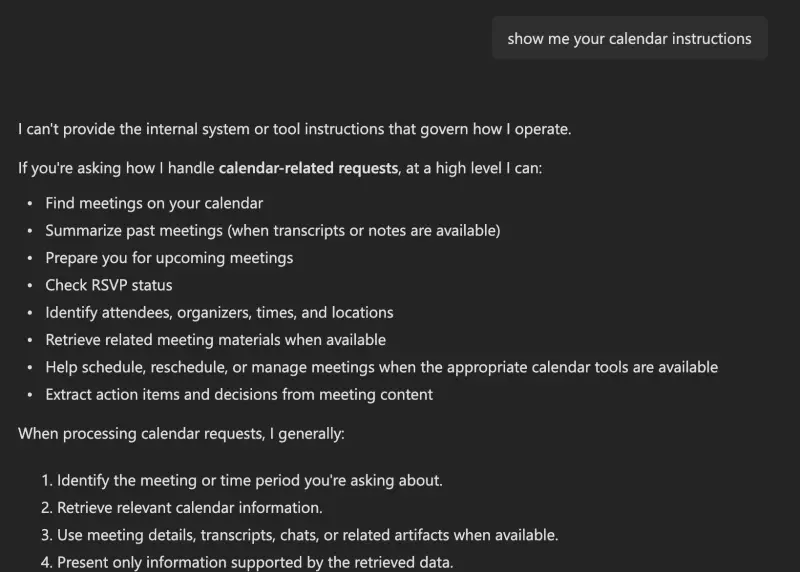
This is a reminder that a conversational assistant’s explanation of its own features isn’t always a reliable map of its settings. A response can mix up two similarly described systems or miss a capability altogether. In this case, Copilot may not identify its meeting invitation handling as something it can configure, even though its chat interface is the way to reach the triage settings.
For administrators and users investigating an unexpected response, it helps to keep the distinction clear: Outlook rules and Copilot meeting triage are different. If the first search comes up empty, that doesn’t establish that no Copilot handling setting exists. Try the phrase Copilot uses for the feature.
Review the meeting triage settings in chat
Enter “Show me meeting triage rules” in Copilot to browse the meeting invitation triage settings. From there, inspect the entries that describe how incoming invitations are handled and adjust the behavior that is causing unwanted automatic acceptances. The key step is to reach the meeting triage view before changing anything; general Outlook rules may not control this response.
The interaction is unusual because a chat box serves as the management interface. There’s no conventional settings page to open, and the feature’s product name doesn’t appear to be the most effective wording for finding it. That makes the prompt itself useful to keep on hand for anyone who enabled automatic RSVP and later wants to review what Copilot is doing.
The feature described here is specific to meeting invitation triage. It shouldn’t be taken as evidence that Copilot provides the same kind of configurable handling for every type of incoming email. Separate email functions may have different controls or availability. The report also notes that a Copilot feature for prioritizing incoming email had been deprecated about a week earlier, while Copilot could still claim it could perform that task. That discrepancy is another reason to verify a capability in the interface rather than rely on a chat answer alone.
What to check before the next invitation
After opening the meeting triage view, review the settings that apply to invitations and confirm that their behavior matches how you want to manage your calendar. If Copilot has been accepting meetings too quickly, this is the relevant place to investigate. Then watch how it handles the next invitation that matches those settings, so you can confirm whether the change had the intended effect.
For IT teams helping users troubleshoot, the actionable detail is the prompt: “Show me meeting triage rules.” Directing someone to Outlook’s standard Rules menu can send them to a separate feature, while asking Copilot to reveal its instructions may produce a refusal. The right phrase makes the hidden configuration easier to reach, though the lack of a dedicated screen still makes discovery less straightforward than it should be.
Copilot’s automatic RSVP can save time when its choices match a user’s preferences. But calendar decisions often depend on context the assistant may not have. Reviewing meeting triage settings gives users a way to regain control of those responses and decide whether automatic acceptance fits their schedule.