- Subject
- Microsoft 365 & SharePoint
- Filed
- Source
- Office-Watch.com
- Loans
- 420
Microsoft 365 SLA Credits: Evidence, Deadlines and Claim Steps
Eligible Microsoft 365 customers must request outage credits by the end of the next month. Here’s what admins need to document and submit.

A Microsoft 365 service outage can qualify for a credit, but the credit won’t appear automatically. Eligible organizations have to document the effect on their users, calculate monthly availability, and submit a claim by the end of the calendar month after the outage. The practical risk is losing the credit through a missed deadline or a claim that doesn’t match the service-level agreement (SLA).
The amount depends on the affected service’s availability during the month: the stated thresholds are 25% below 99.9%, 50% below 99%, and 100% below 95%. A credit applies to the service that failed, and it reduces a later bill. It isn’t a cash refund.
Check eligibility before building the claim
Start with four checks. First, confirm that the subscription is eligible. Paid business, enterprise and education plans can qualify. Consumer plans such as Personal, Family, Premium and Pro, free plans, trials and preview features are excluded. Donated nonprofit Business Basic seats are also identified as ineligible.
Second, make sure the disruption meets the SLA’s definition of downtime for the specific service and resulted from a Microsoft service issue. The definition can be narrower than the experience users describe. For Exchange Online, for example, the cited test is whether users could send or receive email in Outlook on the web. Trouble connecting through the Outlook desktop or mobile app by itself doesn’t meet that example.
Third, calculate availability for the affected service across the entire calendar month. Microsoft counts user minutes, so the number of licensed users and the number who experienced downtime both matter. If the calculation remains above 99.9%, the stated credit thresholds aren’t met.
Finally, track the claim deadline. Microsoft must receive the request by the last day of the calendar month following the outage. An outage on February 15, for example, must be claimed by March 31. The person submitting must be an administrator for the organization; ordinary users can’t open the support request.
Build a record while incident details are available
Microsoft asks for a detailed incident description, when the disruption began and ended, its duration, the number and location of affected users, and the steps taken to address it. Include the organization, tenant ID and subscription details as well. Specific information helps connect what users experienced to the service incident and the SLA calculation.
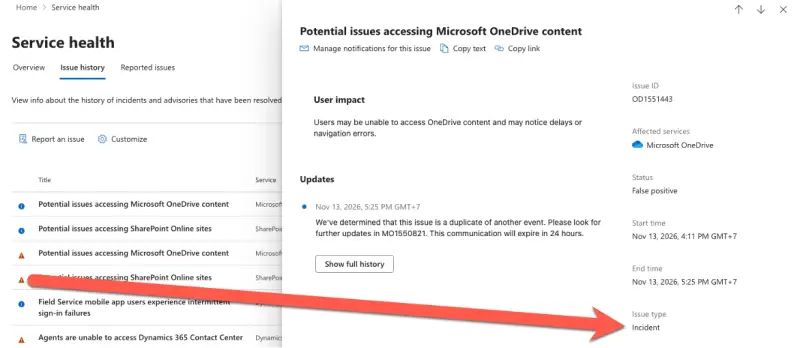
Collect the incident ID from the Microsoft 365 admin center under Health | Service health, then check the Issue history tab. The closure summary or Post Incident Report (PIR) can provide Microsoft’s recorded start and end times and its account of the cause. Pair that with evidence from your own environment: helpdesk tickets, timestamped messages, error screens, user reports and notes on troubleshooting.
Record how many users were affected and where they were working. Keep any Microsoft support request numbers from the outage, too. Your calculation should show the licensed user count, affected user minutes, total downtime counted for that service during the month, and the resulting availability percentage.
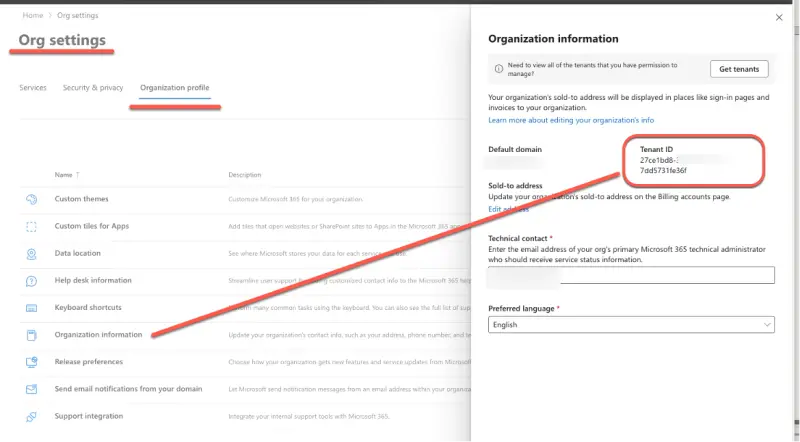
The tenant ID is a 36-character identifier that includes dashes. Find it in the admin center at Settings | Org settings | Organization profile | Organization Information. It’s also shown on the Overview page in the Microsoft Entra admin center.
Save the Service health incident page and PIR as a screenshot or PDF soon after the incident. Service health displays incidents from only the past 30 days, while the claim deadline can fall almost two months after the outage. For major incidents, the stated schedule is a preliminary PIR within 48 hours of the fix and a final report within five business days. Smaller incidents may have a closure summary instead.
Confirm the incident affected your organization
A Service health notice is useful evidence, but it doesn’t establish that every organization was affected. Microsoft describes some organizations as potentially affected, and the actual impact can vary between tenants. Include records showing what your users could not do and when they experienced the problem.
Check the issue type before preparing a claim. The stated SLA distinction is that incidents can qualify for a credit, while advisories don’t. In Service health, look for an incident label or open the issue and confirm its type. Then connect the incident information to your organization’s own user reports, timing and affected service.
Find out who must submit the request
The billing route determines where the claim goes. If invoices appear in the admin center under Billing | Bills & payments, the organization bought directly from Microsoft and can submit a support request there. Organizations buying through a reseller, IT provider, managed service provider or domain host must work through that seller. Microsoft’s support team will direct customers back to the reseller when all subscriptions were purchased through it.
Customers with a volume licensing agreement can submit through the admin center. Check the actual billing arrangement before starting: a missing Billing page or an invoice from another company may indicate that the reseller has to file.
For a reseller claim, send the reseller the tenant ID, incident ID, the outage’s start and end times for your users, duration, affected user count and locations, troubleshooting steps, screenshots and error messages. Include any support ticket number from a call made during the outage.
Send the request from an organization email address and clearly ask for an SLA claim. Microsoft requires evidence that the customer asked for the claim; a reseller’s request without that customer instruction may not be accepted. Contact the reseller during an outage when possible, so the support ticket and related messages form part of the record. Ask the reseller for its submission deadline, which needs to leave it time to file with Microsoft.
Calculate availability and submit the claim
For a direct purchase, calculate availability separately for each affected service. Use the month’s number of days, 1,440 minutes per day and the total licensed users to find total user minutes. Calculate downtime by multiplying outage minutes by the number of affected users, and add together relevant outages during the month.
The calculation is:
- User minutes: days in the month × 1,440 × total licensed users
- Downtime: outage minutes × affected users, added across the month
- Uptime percentage: (user minutes − downtime) ÷ user minutes × 100
Compare the result with the stated thresholds: below 99.9% corresponds to a 25% credit, below 99% to 50%, and below 95% to 100%. If availability is above 99.9%, the calculation doesn’t reach those thresholds. Keep the working with the rest of your evidence so the reviewer can follow the numbers.
Write the request in a separate document before entering it, since the online form has limited space. Sign in to the Microsoft 365 admin center at admin.cloud.microsoft or admin.microsoft.com with an administrator account. Open Support | Help & support, type a request such as “SLA service credit claim” in the Support Assistant, then choose Contact Support and select email.
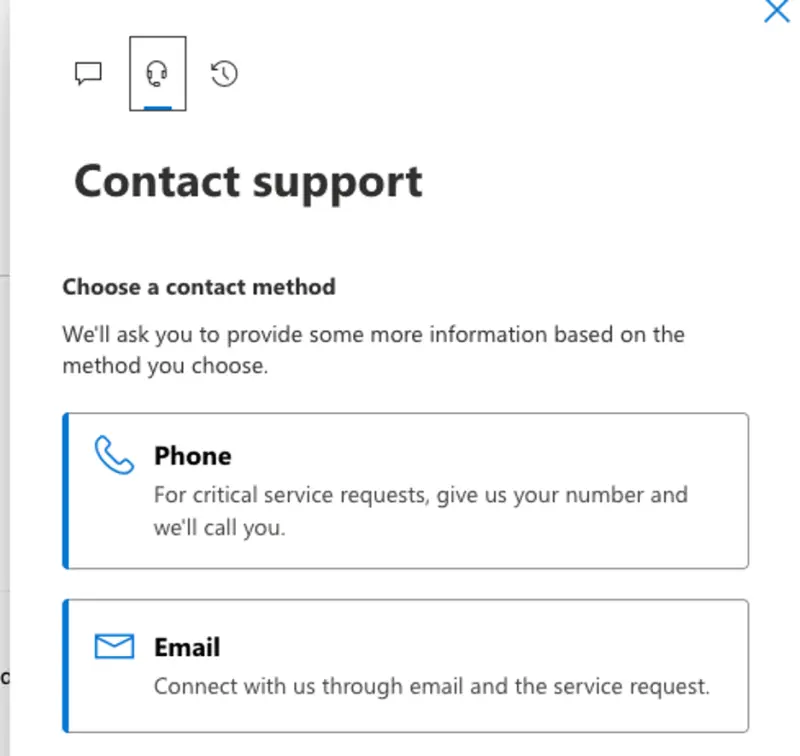
Submit a separate request for each service and incident. Choose email or phone contact; email keeps the exchange in writing. Attach supporting documents if the form permits. Otherwise, reply to Microsoft’s first message with screenshots, the PIR and the availability calculation. Record the support request number and set a reminder to follow up in 45 days.
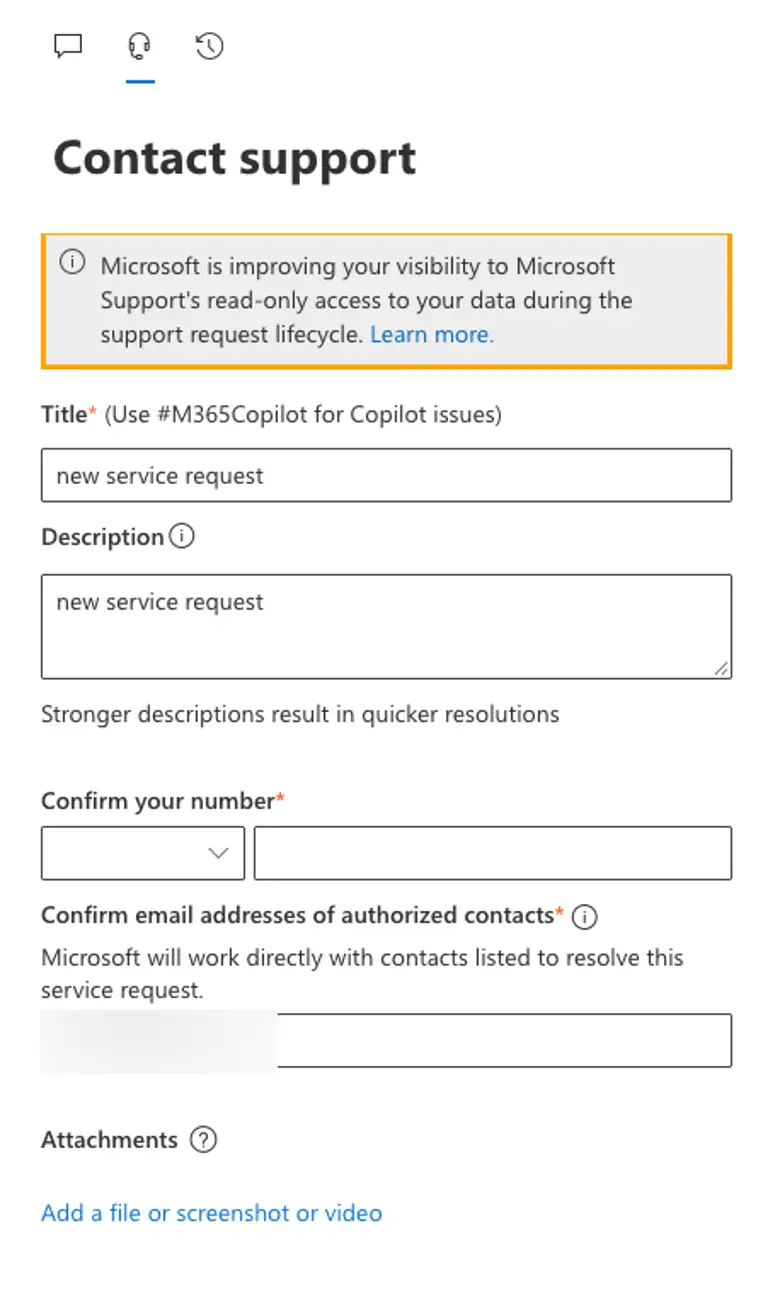
Use a clear, complete claim
There isn’t a separate customer claim form for direct purchases in the process described here. A numbered request that follows the SLA’s information requirements makes the evidence easier to review. Adapt this outline to the incident, remove any sections that don’t apply, and attach the records you’ve collected:
Subject: SLA service credit claim: [Exchange Online], incident [EX12345]

We are claiming a service credit under the Service Level Agreement for Microsoft Online Services for the incident below.

Organization: [company name]
Tenant ID: [tenant ID]
Subscription: [Microsoft 365 Business Standard], [2] licenses, bought direct from Microsoft
Service affected: [Exchange Online]
Incident ID: [EX12345], as shown in Service health

1. Description of the incident
Our users could not [send or receive email in Outlook on the web]. They saw this error: [error message].

2. Time and duration
Start: [date, time and time zone]
End: [date, time and time zone]
Duration: [480] minutes

3. Users affected
[2] of our [2] licensed users, at [office location].

4. Our attempts to resolve the incident
[We checked Service health, restarted devices, tried another network and another browser. We opened support request number ...]

5. Uptime calculation for [month and year]
User minutes: [30] days x 1,440 x [2] users = [86,400]
Downtime: [480] minutes x [2] users = [960] user minutes
Monthly uptime: ([86,400] minus [960]) divided by [86,400] x 100 = [98.89]%

This is below [99%], so we request a [50%] service credit for [Exchange Online] for [month and year].

Attached: [screenshots, error messages, copy of the Service health incident report]

Contact: [name, role, email, phone]
The figures in this example represent two Business Standard users who both lost Outlook on the web for eight hours in a 30-day month. The example calculates 98.89% availability, placing it below 99% and corresponding to a 50% credit. It estimates the maximum credit as $14 against a $28 monthly bill.
If a reseller handles the purchase, send the completed request to that reseller from your organization email account and include any related support ticket number.
Know what approval and billing mean
Microsoft says it will use “commercially reasonable efforts” to process a claim during the month after receipt and within 45 days. That timing is a target, not a guarantee. Support may request more details, so reply in the existing support thread to keep the evidence together. The decision comes through the contact method selected for the request; reseller customers receive the response through their reseller.
An approved credit is limited to the affected service and is prorated according to the service and outage duration. If SharePoint was the service affected, for example, the credit applies to SharePoint rather than the full Microsoft 365 suite. The credit is applied to a future invoice and cannot exceed that month’s fee for the affected service.
For direct purchases, check the admin center’s Billing | Bills & payments area and its Invoices tab. Microsoft also emails customers when a new invoice is ready. With a reseller, the credit goes to the reseller first, so ask when and how it will appear on your bill.
Annual prepayment changes when the credit appears
Annual subscribers are calculated on the monthly share of the subscription fee, not the full amount paid upfront. The described billing method uses a daily rate based on the annual price divided by 365. In the example, two Business Standard users prepay $336 for a year; one month’s share is $28. The maximum stated value is $7 at 25% or $14 at 50%, matching the example’s monthly billing amounts.
The timing can be less convenient for annual customers because credits reduce a future invoice. If no invoice is due until renewal or a license change, the credit may not appear for months. State in the claim that the subscription is paid annually and ask in writing whether the credit will apply to a future invoice, renewal or credit balance. Microsoft Customer Agreement invoices have a Charges/Credits line that can help confirm the adjustment.
Don’t deduct a pending credit from an invoice yourself; the stated SLA process doesn’t allow customers to offset fees independently. Continue paying invoices in full while the request is pending. Reseller customers should ask the reseller to apply the credit to a later bill. If the organization plans to cancel or change providers, check how an unused credit will be handled, since it applies to future charges from the same provider.
If the claim is rejected
Ask for the reason in writing. Common explanations include availability staying above 99.9%, the incident not meeting the service’s SLA definition, a late submission, ineligible free or trial licenses, or a Service health advisory rather than an incident.
If the decision appears to overlook relevant information, reply in the same support request with the missing evidence or a corrected calculation. Keep the incident record and deadline visible to the team: the best time to preserve screenshots, user impact details and support references is while the disruption is still unfolding.