- Subject
- Microsoft 365 & SharePoint
- Filed
- Source
- Tony Redmond
- Loans
- 918
Entra ID Password Changes Without the Current Password: Tenant Setup and Licensing
Entra ID’s preview lets licensed users change a password after strong sign-in. Admins must enable a beta Microsoft Graph setting as rollout reaches tenants.
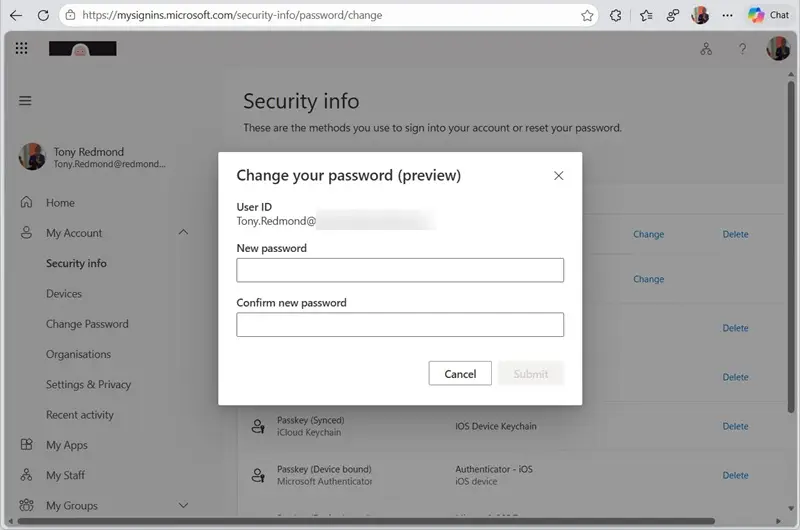
Entra ID is adding a way for users to change a forgotten password after signing in with a supported strong authentication method. For organizations that still rely on password based legacy applications, this could reduce help desk requests and avoid a separate self service password reset (SSPR) step. The feature is rolling out as a preview and requires an administrator to enable a password authentication setting through Microsoft Graph.
Microsoft’s message center notification MC1437671 first appeared on 23 July 2026 and was last updated 13 October 2026. The feature is rolling out to tenants and is expected to be available everywhere by the end of November 2026. The setting is already present, but the feature is off by default. Enabling it in a tenant does not make it available to users until Microsoft has deployed the feature to that tenant.
What users will see
Today, users can visit the My Sign-Ins page and select Change password. With the existing process, they must enter their current password. If they have forgotten it, they need to use SSPR to reset it, or contact the help desk for assistance.
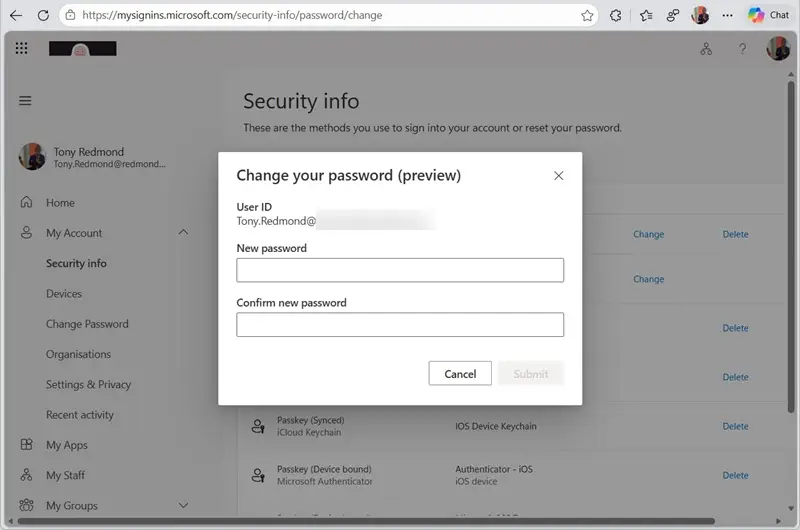
With the new behavior enabled and available in the tenant, a user who has signed in to Entra ID using a supported strong authentication method can open the same Change password option and provide a new password without entering the old one. The secure sign-in is the prerequisite for changing the password. The flow is intended to remove the extra recovery step for people who can authenticate securely but cannot recall their existing password.
Users need an Entra P1 or P2 license to use this Change password flow. Administrators should factor that requirement into planning: enabling the tenant setting alone does not establish that every user is eligible. The feature also does not remove the need for passwords where applications still require them. Instead, it gives eligible users another route to update a password after a strong sign-in.
Why this matters in password based environments
Many organizations are adopting passkeys and other passwordless sign-in methods, including Microsoft Authenticator, FIDO2 passkeys and Windows Hello for Business. Those methods can reduce reliance on passwords when applications support modern authentication and users can use the required sign-in method. Older applications and services may still require a password, however, and replacing or upgrading them can take time and effort.
That leaves administrators managing two realities at once: newer sign-in methods for supported services and passwords for older ones. A user who can authenticate to Entra ID securely may still need a working password for a legacy application. If that password has been forgotten, the existing reset process can add friction and create a help desk task. This feature addresses that specific gap; it does not convert password dependent applications to passwordless authentication.
Enable the setting with Microsoft Graph PowerShell
The tenant setting lives in the Entra authentication methods policy for the Password resource. The configuration is currently a beta implementation, and the Entra admin center does not yet provide a user interface for changing it. The authentication methods policy API documentation does not yet cover the Password configuration described here.
To update the setting, connect to Microsoft Graph PowerShell with the delegated Policy.ReadWrite.AuthenticationMethod permission. The signed in account also needs an Entra role that permits authentication policy changes, such as Authentication Policy Administrator. The following command sets allowPasswordChangeAfterSecureSignIn to true:
Connect-MgGraph -Scopes "Policy.ReadWrite.AuthenticationMethod" -Nowelcome
$PolicyUpdate = @{}
$PolicyUpdate.Add("allowPasswordChangeAfterSecureSignIn", $true)
$PolicyUpdate.Add("@odata.type", "#microsoft.graph.passwordAuthenticationMethodConfiguration")
Update-MgBetaPolicyAuthenticationMethodPolicyAuthenticationMethodConfiguration -AuthenticationMethodConfigurationId "Password" -AdditionalProperties $PolicyUpdate
This is equivalent to sending a PATCH request to the Password authentication method configuration endpoint:
After the update, administrators can read the configuration and inspect its additionalProperties value:
$Configuration = Get-MgBetaPolicyAuthenticationMethodPolicyAuthenticationMethodConfiguration -AuthenticationMethodConfigurationId "Password"
$Configuration.additionalProperties
Key Value
--- -----
@odata.context https://graph.microsoft.com/beta/$metadata#authenticationMethodConfigurations/$entity
@odata.type #microsoft.graph.passwordAuthenticationMethodConfiguration
allowPasswordChangeAfterSecureSignIn True
The property appears under AdditionalProperties because the current Graph PowerShell SDK model does not expose allowPasswordChangeAfterSecureSignIn as a strongly typed property. The SDK uses this dictionary for data that it cannot map to named PowerShell properties. More detail on that behavior is available in this explanation of the AdditionalProperties property.
Rollout and operational checks
The policy update takes effect almost immediately in the configuration, but tenant availability depends on Microsoft’s feature deployment. Administrators should therefore distinguish between a setting that reads as enabled and a feature that users can actually use. The rollout was expected to reach all tenants by the end of November 2026; until deployment reaches a tenant, changing the setting has no user facing effect.
Once the feature is available, teams can check that eligible users have the required Entra P1 or P2 license and can complete the password change after a supported strong sign-in. The observed flow has had at least one reported glitch: if the user starts the process and lets it time out, Microsoft Teams may have trouble switching from another tenant back to the user’s home tenant. In that reported case, resetting the password and signing out of and back into Teams resolved the issue. Users should complete the password change after starting it, and administrators should watch for further rollout fixes.
For IT teams, the practical next step is to review licensing, enable the Graph setting where appropriate, and confirm tenant availability before communicating the new flow to users. It offers a narrower recovery path for password dependent services while organizations continue to support the authentication methods their applications can handle.