- Subject
- Microsoft 365 & SharePoint
- Filed
- Source
- Sujeet Mehta
- Loans
- 980
Microsoft Teams Adds Agent Identity, Progress Updates and Interactive Widgets
Teams agents can join under their own identity, show task progress and present interactive views. Several capabilities are in public preview; socket mode is for development and testing.
Microsoft Teams is gaining tools that let agents take part in shared work with a clearer identity, visible progress and interactive responses. For IT teams and developers, the change is practical: an agent can join the conversation where a task is being discussed, show how it reached an answer and help people examine options without switching apps.
Six capabilities affect how people work with agents in Teams, while a seventh targets development and testing. Agentic Users, threaded replies, agent plans and steps, HTML widgets, and socket mode are in public preview. Streaming in group chats and channels, along with Extended Markdown, is available now.
Give agents an identity and a place in the team
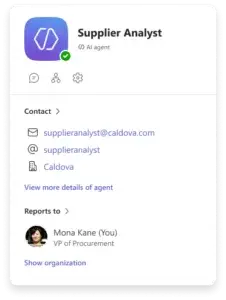
Agentic Users give an agent its own Microsoft Entra account, so its messages and actions appear under its name rather than a person’s account or a shared app. People can find the agent, add it to chats, channels and meetings, and mention it in Teams and across Microsoft 365 apps. Its profile identifies its owner, and audit logs attribute actions to the agent.
That identity can support proactive contributions. Within the access and limits set by the organization, an agent can post an update, follow up on an open question or prompt work that has stalled. Administrators approve the agent, define what it can access, review activity in Microsoft Agent 365 down to individual tool calls, and disable it when needed. Not every agent requires this model: application style agents and personal assistants may use other identities.
Developers can build this pattern with the Teams SDK, carrying over existing cards, reactions and API calls. Organizations that create many agents can maintain one Teams app while giving each agent a distinct identity. Microsoft’s agent factory guide describes the implementation approach.

Keep tasks and follow ups organized
Threaded replies, now in public preview, bring separate threads to one to one agent chats. Developers can use a thread as a task or session boundary, keeping one exchange’s context apart from unrelated work. They can also choose which conversation history to include when the user follows up. For teams handling several questions with the same agent, that separation can make it easier to return to the right discussion. Details are in the threaded replies documentation.
Show what the agent is doing
Agent plans and steps, in public preview, let an agent display progress on a multistep task, mark completed work and ask for input without filling the chat with status messages. Completed steps remain available alongside the final response, giving people a way to review the work behind an answer. Microsoft describes the feature in its agent plans documentation.
Streaming is available now in group chats and channels. Instead of waiting for a full response, people can watch it appear as the agent generates it. This can make longer replies feel more responsive. Extended Markdown, also available now, supports tables, syntax highlighted code and checklists, including while content streams. Citations can help readers check the information in a response. The streaming guidance and Extended Markdown documentation cover these options.
HTML widgets, in public preview, put custom interactive views inside an agent’s response. Developers can connect a widget to business logic and MCP tools, letting people explore options or take action within the conversation. The HTML widget documentation explains how to add one.
A fictional manufacturing company, Caldova, illustrates how these features fit together. Its procurement team needs 24 batches but can cover only 8 internally. The team adds Supplier Analyst to a capacity planning conversation and asks it to compare suppliers. The agent shows its work as it reviews capacity, quality requirements and continuity obligations.
In the example, Supplier Analyst recommends shortlisting Aster, subject to outstanding conditions. Aster’s indicated capacity of 16 external batches could cover the shortfall; Meridian’s 12 would leave four batches uncovered. Citations connect the recommendation to supporting evidence, while unresolved requirements remain visible.
The team then asks for an HTML widget. Its larger view displays next steps and names owners for outstanding reviews. When someone changes the external capacity assumptions, the view updates the coverage and remaining gap. The team retains the decision about whether to commit. Here’s the operational value: the recommendation, its evidence, the assumptions and the follow up work stay together in Teams.
Test agents locally with socket mode
Socket mode, in public preview, lets developers run and test a newly created agent in Teams without setting up a public HTTPS messaging endpoint or a development tunnel. That makes it possible to try the experience in a real Teams conversation while building locally. During the preview, socket mode is for development and testing only; production agents still require an HTTPS messaging endpoint. The agent connectivity guidance has the details.
Developers can start at Teams.dev and check the developer release updates for capability and preview changes. For teams evaluating these features, the key checks are which capabilities are available in their environment, what access the agent needs, and which actions administrators will review.