- Subject
- Microsoft 365 & SharePoint
- Filed
- Source
- Vlad Catrinescu
- Loans
- 867
SharePoint Hero Links: Admin Settings, Expiration Gaps and Reporting Changes
SharePoint hero links give each file one changeable link. Admins should check site defaults, review broad access and adjust sharing reports.
SharePoint and OneDrive are introducing a single primary sharing link for each file and folder. The link, called a hero link or main link, can change audience without changing the URL. For administrators, the practical concern is that existing link expiration rules don’t apply to hero links, while reporting tools may list them even when nobody deliberately shared the item.
Microsoft describes the change in message center post MC1454378. The rollout is underway and is scheduled to run through the end of November 2026. Microsoft first announced the feature in May 2025; its rollout dates have changed more than once, with the most recent update dated October 7.
One link can serve different audiences
With classic sharing, users often create a separate link for each audience. A file might have one link for a colleague, another for a team, and another for an external contact. Each link has its own scope and may be subject to its own expiration settings. The hero link changes that pattern: a file or folder has one primary link, and users can widen or narrow that link’s audience as needs change.
The same hero link is used when someone chooses Copy link, shares by email, or copies the URL from the browser. Its starting scope is Only people added, and its default permission is view. That means the link itself doesn’t give new people access at first. It works for people who already have permission through the item, a group, or the site.
If a recipient can’t open the file, the sender can add that person directly or broaden the hero link to people in the organization or, where sharing settings permit, anyone with the link. The URL already sent to recipients continues to work after its audience changes.
Directly adding people remains a straightforward way to grant access to named recipients. The hero link controls access through that link; it doesn’t remove other permissions. Effective access still reflects the most permissive combination of direct, inherited, group, and link permissions. As a result, setting the hero link to Only people added doesn’t remove access that site members already have.
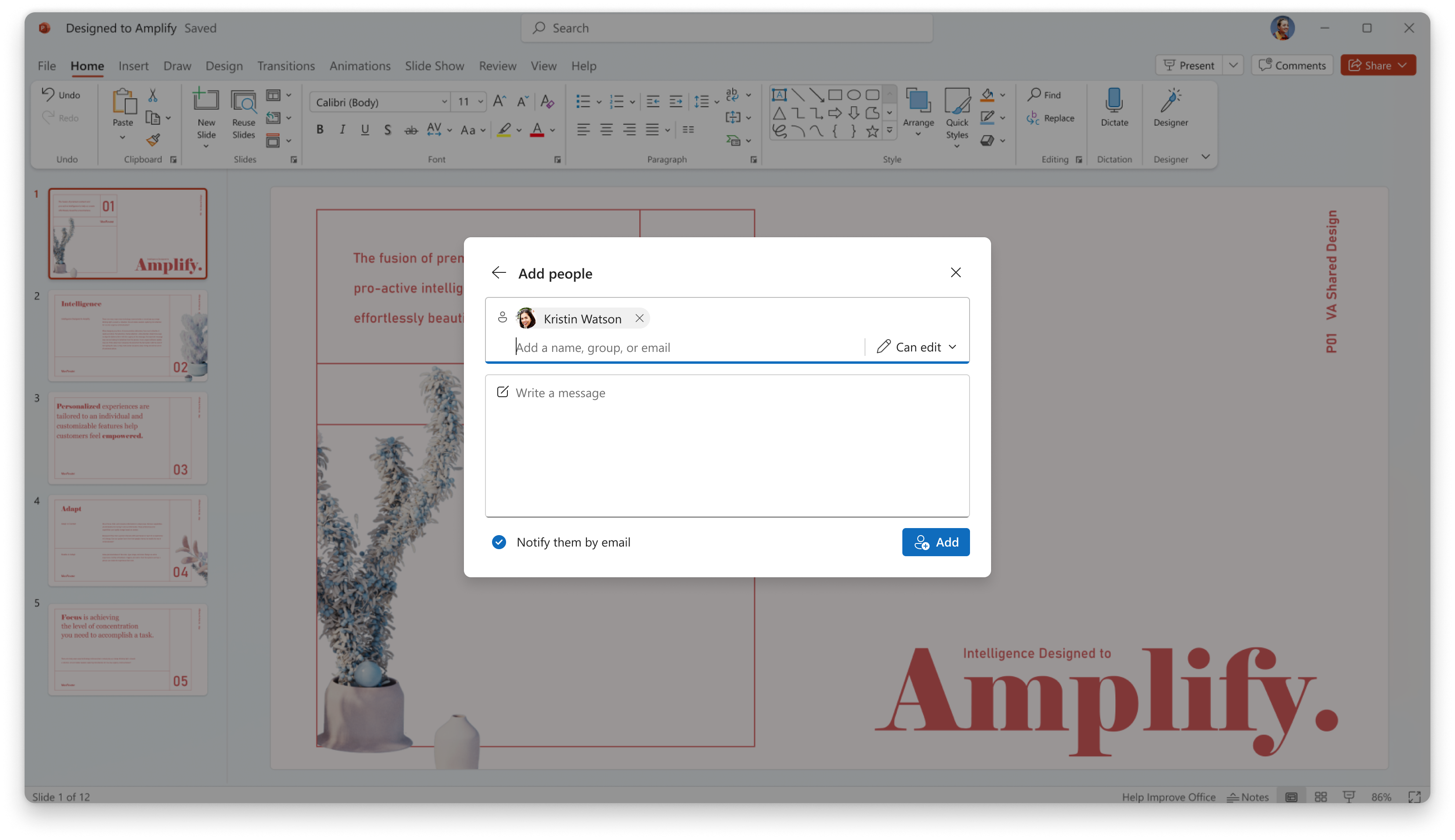
Adding people remains an option in the sharing dialog: select recipients, set their permission, and decide whether to notify them by email. Source: Microsoft, MC1454378.
Removal and older links work differently
The new dialog changes what happens when users remove access. Microsoft’s admin walkthrough says the classic Stop sharing action removed unique permissions so an item inherited permissions from its parent again. The new Remove access action resets the hero link to Only people added and removes people added to the item, leaving only the owners with access through that setting.
Reset link replaces the URL with a new one set to Only people added. That action is distinct from removing access: it changes the link, while the new removal option also removes people who were added to the item.
Existing classic links aren’t converted into hero links. They appear in the new dialog under Other sharing links, and the existing policies for those links continue to apply. Users can still create additional classic links when they need a particular scope or an expiration date.
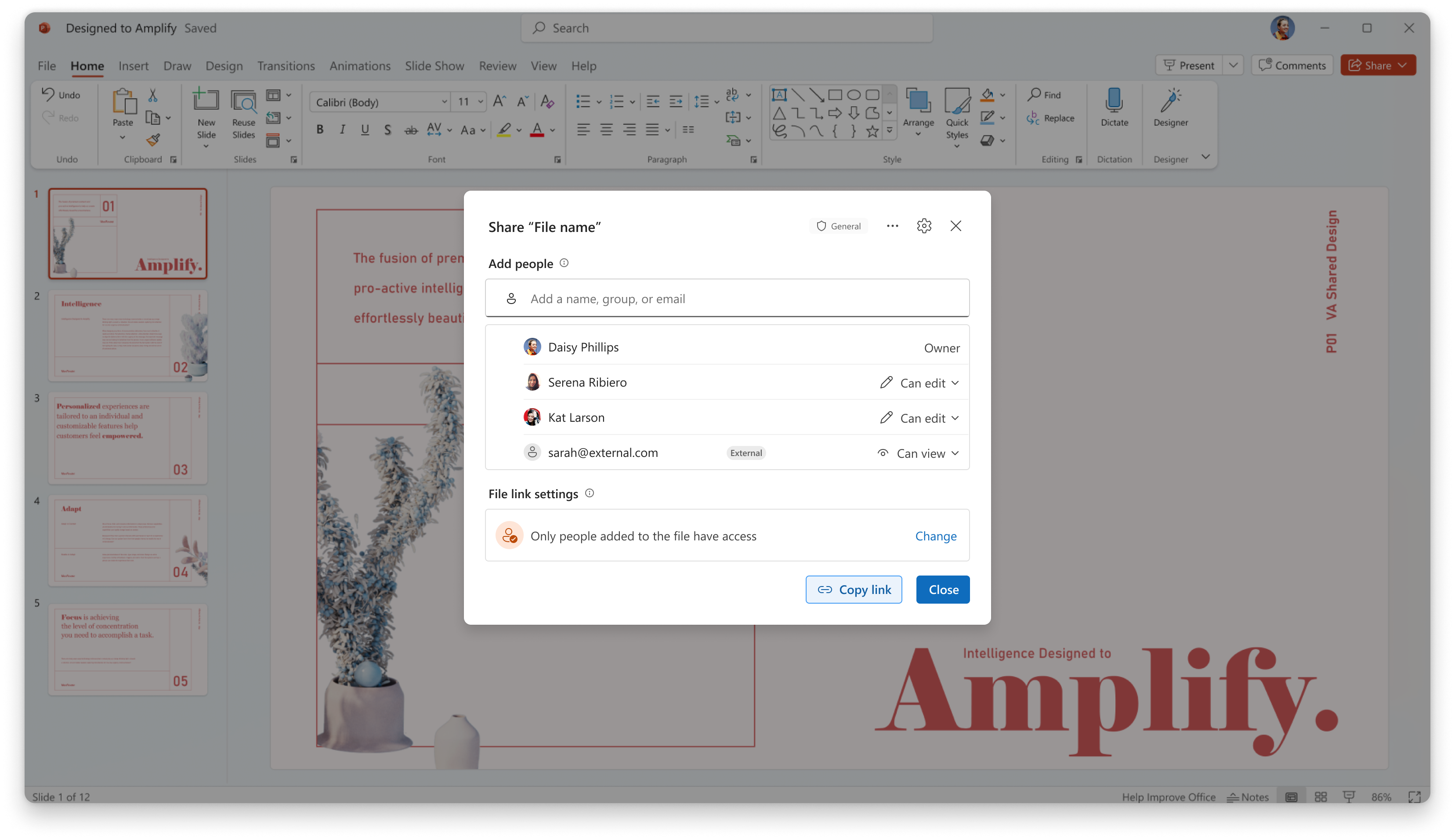
The sharing dialog shows the hero link in the file’s link settings. Its initial setting is that only people added to the file have access. Source: Microsoft, MC1454378.
Expiration rules don’t cover hero links
Microsoft says default sharing link settings and expiration policies continue to govern classic links, but don’t apply to hero links. An administrator’s expiration setting for Anyone links therefore won’t give an Anyone hero link an end date. In testing by Microsoft MVP Reshmee Auckloo, hero links had no expiration date. A broadened link can remain available until someone narrows its audience or resets it.
Organization and site sharing settings still set the outer limits on access. A hero link can’t grant external access on a site where external sharing is disabled, according to Auckloo’s testing. Microsoft also says users can broaden a link only as far as the organization’s settings allow. Admins should still review links with wider audiences, since expiration policies won’t close those hero links automatically.
Set the starting audience per site
Classic sharing links have an organization-wide default that administrators can override at the site level. Hero links currently have no tenant-wide default. SharePoint administrators can set their starting audience per site or OneDrive with the DefaultMainLinkScope parameter of Set-SPOSite. Microsoft calls hero links “main links” in that parameter.
The Set-SPOSite reference lists three values: OnlyPeopleAdded, Organization, and Anyone. OnlyPeopleAdded is the effective default. Anyone depends on the organization allowing that link type; if site settings don’t permit it, SharePoint falls back to a more restrictive value. Microsoft’s message center post lists only the first two values as supported, so administrators should test Anyone before depending on it.
The reference also says the setting applies to items at the root of each document library. Administrators should check how it behaves for files within folders in their own environment. In every case, this setting chooses the initial audience; it doesn’t cap how far a user can widen a link under the site’s sharing rules.
Update the SharePoint Online Management Shell before using the parameter, because older versions don’t include it. For example:
Connect-SPOService -Url https://contoso-admin.sharepoint.com
Set-SPOSite -Identity https://contoso.sharepoint.com/sites/projects -DefaultMainLinkScope Organization
Many sites may not need a different default. A hero link set to Only people added works for people who already have access through the site, so a broadly readable intranet may not need an organization-wide starting audience. Consider changing the default on sites where files regularly go to colleagues outside the site membership, and account for the fact that anyone in the organization who receives the URL may be able to use a link set to Organization.
Sharing reports need a closer read
A link appearing in a report may no longer mean someone deliberately shared the file. Auckloo found hero links in a PnP PowerShell export for items without unique permissions. Her export also labeled some hero links set to Only people added with the same anonymous scope as Anyone links. Administrators should check how their own reporting tools classify these entries before relying on an anonymous-link count.
People added through the sharing dialog receive permissions on the item itself, so their names don’t necessarily appear in the hero link’s user list. That distinction matters when investigating who can access a file: the link’s listed users alone may not show everyone with permission.
There’s also a change for users who previously had People with existing access as the classic default. In that case, Copy link returned a readable path. It now returns the hero link, which contains a randomly generated ID. Auckloo points out that these URLs can be harder to trace and update in bulk during a migration.
Inventory options and rollout checks
Auckloo’s inventory post describes a script that exports file and folder links from a site to CSV, including link type, scope, roles, expiration, and password settings. It distinguishes hero links from legacy links using a pattern in link IDs, rather than a documented property, so that label is an indicator rather than a definitive classification. The export’s unique-permissions column can help administrators distinguish actual permission exceptions from hero-link entries.
To run the script, administrators need to add -ClientId and -Interactive to its connection line and sign in with their own Microsoft Entra ID app registration. The app needs Microsoft Graph permission to read files, such as Files.Read.All. Run it as a site owner to see every link, and create a Logs folder beside the script for its CSV output.
Syskit Point is another reporting option described for this change. Its sharing reports distinguish main links from classic sharing links and show whether an item’s main link is set to Only People Added, People in your org, or Anyone. Its Permissions Matrix and Externally Shared Content reports also surface the main link setting. As with any reporting tool, administrators should confirm that the reports reflect the link audiences and permissions they need to investigate.
Before the new dialog reaches users, test it on a new file and on an older file with existing links. Review which sites need a different DefaultMainLinkScope, then spot-check sensitive sites for hero links open to the organization or anyone. For the PnP export, confirm the audience in the sharing dialog or a reporting tool that shows it directly.
Update sharing guidance and brief the helpdesk on three likely questions: recipients who can’t open a link may need to be added or the audience widened; existing links are under Other sharing links; and Remove access leaves only owners with access through the hero link setting. Word, Excel, and PowerPoint on Mac still use the older Share dialog for now.
Hero links don’t clean up existing links, so current review work still matters. The change does give new files a default link that grants no new access until someone chooses a broader audience. Admins should focus on that choice, the links that won’t expire automatically, and how their reports represent the new link type.