- Subject
- Microsoft 365 & SharePoint
- Filed
- Source
- Vlad Catrinescu
- Loans
- 849
Microsoft 365 Agent Approval: SharePoint, Agent Builder and Copilot Studio
Approval depends on the agent type: review SharePoint ownership, Agent Builder sharing defaults and the Copilot Studio request queue.
Microsoft 365 doesn’t use one approval path for every agent. SharePoint agents are managed at the site level, Agent Builder agents can be shared across an organization by default, and Copilot Studio agents need an administrator’s approval before they become available to everyone. For IT teams, those differences affect where to review agents and what to check before broad access is granted.
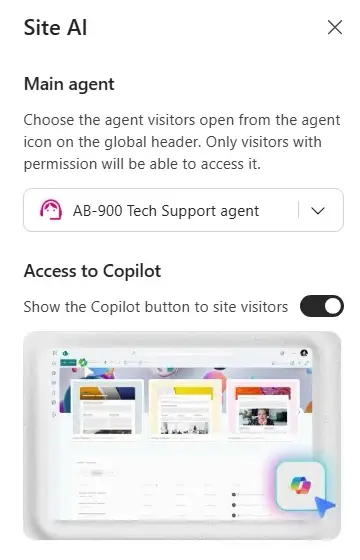
The main controls sit in different places. SharePoint site owners choose the site’s main agent. Agent Builder sharing is governed by an admin setting, while makers choose who can access each agent. Copilot Studio submissions enter an approval queue; administrators can review them in the Microsoft 365 admin center under Agents > All agents > Requests.
SharePoint agents are managed by site owners
SharePoint agent approval was removed in June 2026. The Approved folder remains in the site’s Site Assets library, but it no longer controls approval. A site team can still use the folder to keep track of agents it considers ready, but it functions like any other folder.
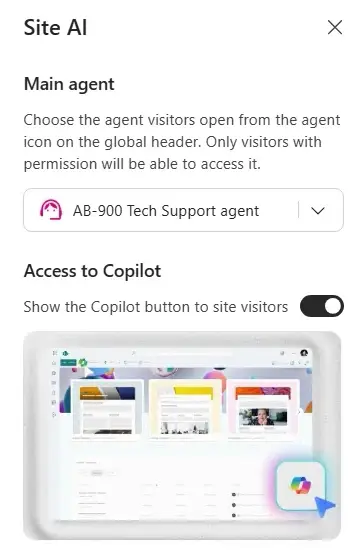
The site owner can select one main agent in the Site AI pane. This is the agent visitors open from the agent icon in the site header. The owner can also decide whether visitors see the Copilot button. To feature additional agents, someone with edit permissions or higher can add the agent link web part to a page, such as the home page.
That arrangement makes the site owner the key contact for deciding which agent gets the most prominent position. It doesn’t create an approval queue for every agent on the site. Administrators responsible for broader oversight can review the available reporting and policy controls described in the SharePoint agent governance guide.
Agent Builder sharing is open by default
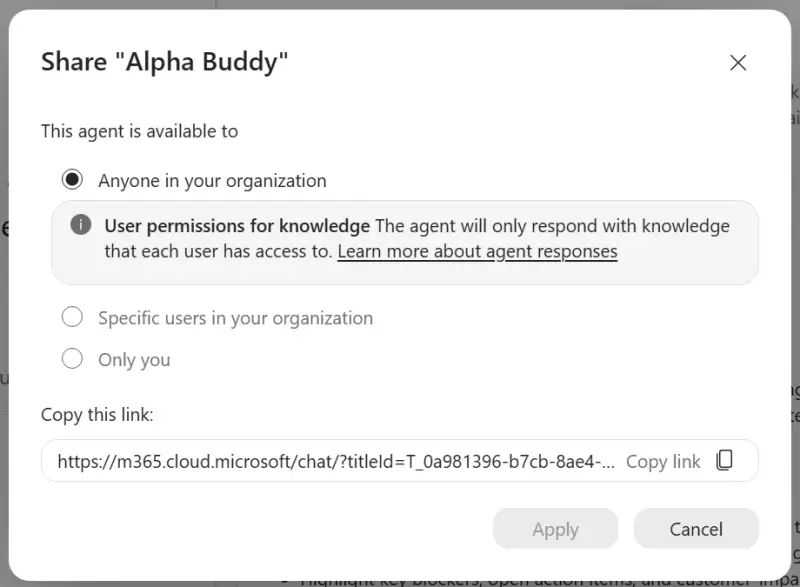
Agent Builder makers can share an agent with selected people or with anyone in the organization. By default, organization wide sharing is enabled, so a maker can make an agent available to everyone without waiting for an administrator to approve it. Administrators can change this setting.
That default deserves a tenant level check. A broad sharing link can make an agent easy to reach, but its answers are still shaped by the person using it. The agent respects the user’s existing access to connected knowledge sources. If a user cannot open a SharePoint site, the agent won’t use that site to answer that user. The same permission boundary applies to SharePoint agents.
There’s one important exception for files uploaded directly to an Agent Builder agent. Those files travel with the agent, so anyone who can use the agent can receive answers based on the uploaded material. Administrators should account for that behavior when reviewing the sharing setting and advising makers. More detail on work data access is available in this explanation of Microsoft Copilot data access.
To share an agent, the maker opens it in Agent Builder, selects Share, and chooses whether access is limited to the maker, specific organizational users, or anyone in the organization. After the maker copies the link and selects Apply, people covered by that choice can use the agent through the link.
Copilot Studio submissions require admin review
Copilot Studio has a defined approval step for organization wide access. A maker can share an agent with specific people without that step. To make it available to everyone, the maker publishes it to the Microsoft Copilot and Microsoft Teams channel, then submits it to the organization catalog. It remains pending until an administrator acts on the request.
Knowledge access depends on the agent’s configuration. Copilot Studio supports different ways to connect knowledge sources, including service accounts and connections made as the person chatting with the agent. Administrators should therefore review how the agent is configured as well as who will receive it.
Administrators can approve agents in the Microsoft 365 admin center or the Teams admin center. For the AB-900 exam, the relevant path is the Microsoft 365 admin center, where Microsoft has been bringing agent management capabilities together. The unified inventory is covered in this overview of Microsoft’s agent inventory.
Reviewing and publishing a request
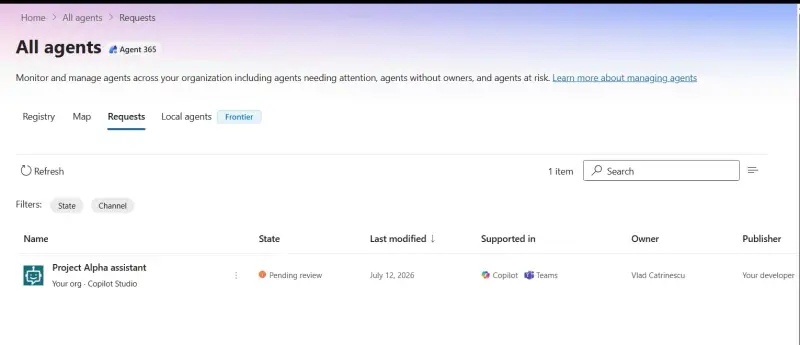
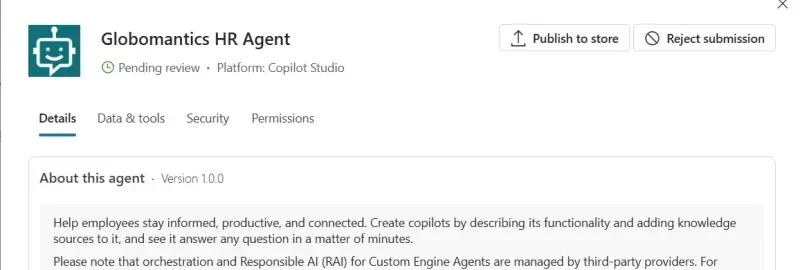
In the Microsoft 365 admin center, open Agents, select All agents, then open the Requests tab. If a new submission isn’t listed, select Refresh. Open the agent to inspect its details, then choose Publish to store or Reject submission.
The review details include when the agent was created and last updated, its channels, data and tools, insights from Microsoft Purview and Microsoft Defender, and Microsoft Entra Agent ID permissions when the agent uses one. That information gives reviewers a view of how the agent is built before they decide whether to make it broadly available.
When publishing, the administrator chooses the audience, which can include all users, and whether to pre-install the agent. The admin can also apply a policy template, a Microsoft Agent 365 feature. Once published for the selected audience, the agent becomes available to those users.
Checks for Microsoft 365 administrators
Start by checking which agents are already available in the tenant. Confirm whether the Agent Builder sharing setting matches the organization’s needs, and make sure someone monitors the Copilot Studio Requests tab so submissions don’t sit unattended. Review direct uploads to Agent Builder agents with particular care, since those files are available to everyone who can use the agent.
The approval model is easiest to remember by type: site owners select the main SharePoint agent, Agent Builder follows a sharing setting that permits organization wide sharing by default, and Copilot Studio waits for admin review before broad release. For AB-900 study, know those defaults and focus on the Microsoft 365 admin center request workflow; the agent administration study guide lists approval processes among the skills measured.