- Subject
- Microsoft 365 & SharePoint
- Filed
- Source
- Vlad Catrinescu
- Loans
- 395
Microsoft 365 Archive: Copilot, Reactivation, Retention and Storage Costs
Microsoft 365 Archive keeps SharePoint data in cold storage. See what changes for Copilot, users, compliance, licensing and storage bills.

Microsoft 365 Archive can lower SharePoint storage costs while keeping archived content under the same permissions and compliance settings. The operational trade-off is access: after the first seven days, bringing a file back can take up to 24 hours. Admins should test that delay with site owners before automating archive at scale.
Archive is a storage tier within SharePoint and OneDrive, not a separate repository or a replacement for retention. It excludes archived files from Microsoft Copilot grounding and hides them from search results by default. For teams managing large libraries, those changes can reduce storage costs and keep everyday search and Copilot results focused on active content.
Where archived content lives and what remains in place
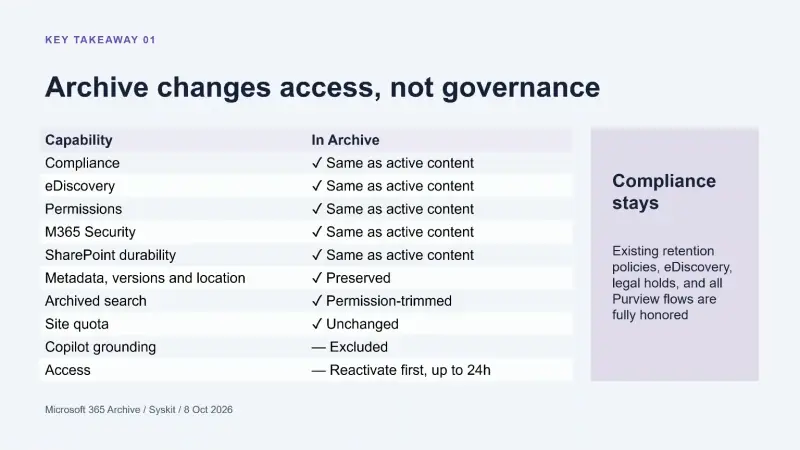
Microsoft 365 Archive moves inactive content into cold storage managed by SharePoint. The content remains within the Microsoft 365 boundary; administrators don’t have to move it to an external archive or manage another repository. Metadata, folder structure, permissions, security, durability and compliance settings travel with the content and remain in place while it is archived.
Archived data follows the same geographic residency requirements as active SharePoint data. Microsoft’s product manager, Trent Green, said it stays in the same locations as the tenant’s active content. He also said SharePoint stores the data twice in different locations within the residency boundary.
There are two archive scopes. File-level archive applies to individual files while their site remains active. Site-level archive moves a whole site into archive, which suits a project or other workload that has ended but still needs to be kept. The Microsoft 365 Archive overview describes both options.
Archiving doesn’t increase a site’s storage quota. Archived and active files still share that site’s limit. A site capped at 10 TB, for example, has 10 TB for both types of content. The savings affect the tenant’s storage billing, rather than the quota assigned to an individual site.
Copilot, search and app access
Copilot doesn’t use archived content as grounding material. Green described that exclusion as a way to keep responses focused on relevant, recent information. Microsoft is considering whether administrators might eventually choose to expose some archived content to Copilot, but the current default is to exclude it.
Search treats archived files differently from active files, too. Archived content is omitted from results by default, but users can include it when needed. In OneDrive, they can select the Archived filter; in SharePoint search, they can choose Archived from the File type dropdown. Search results remain permission-trimmed, so users only see archived files they already have permission to access.

Custom apps can still encounter archived files in file listings. Archive is a state attached to a file, and APIs that list files return archived items with that state indicated. An app can’t read an archived file’s contents until the file has been reactivated. Microsoft’s developer guidance covers the API behavior.
Reactivation and the user experience
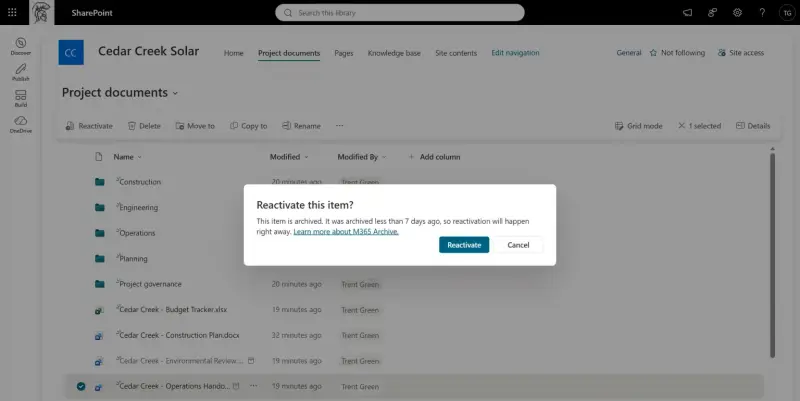
Users can reactivate an archived file or start the process by opening it. For the first seven days after archiving, reactivation is nearly instant. After that, Microsoft says it can take up to 24 hours. Green said most files and sites return in 18 to 22 hours, and more than 99.9% of files are restored within 24 hours.
The delay comes from how the cold storage tier handles content: documents are split into pieces across redundant storage, then SharePoint retrieves and reassembles them. The initial seven-day window provides a quick recovery path if someone archives a file by mistake.
A user with edit permission can archive a file from its document library, provided file-level archive is enabled for the site. Microsoft says that setting is on by default for every site. Administrators can turn off the Archive action across the tenant or for selected sites using PowerShell. When a user starts the action, a dialog explains the fast reactivation window and the later wait. The file stays in its original location, marked with an archive icon.
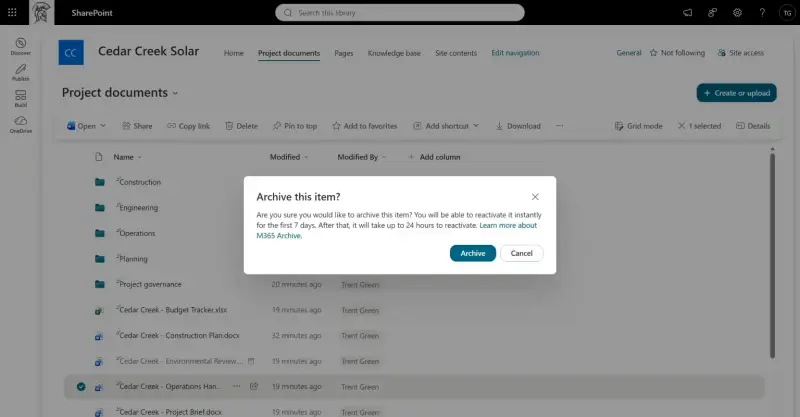
While a file is archived, users can’t work with its contents until they reactivate it. They can still delete it, rename it, move or copy it, and view its details. Moving or copying an archived file preserves its archived state. Anyone with read permission can request reactivation; it is free, and no approval is required. After the first seven days, the person who requested it receives an email when the file is available. The end-user documentation outlines these steps.
Locked or read-only sites can’t be archived or reactivated through these actions, because both operations change the site’s content state. The restriction follows the site’s read-only status.
Files, folders and whole sites
File-level archive applies to files, not folders. A folder doesn’t receive an archived icon, even when its contents are archived. Instead, users can choose Archive all files for a folder; that action includes files in its subfolders. If someone later needs one item, they can reactivate that file without restoring the rest.
Microsoft is exploring an icon for folders whose files are all archived, but Green said it isn’t on the immediate roadmap. For now, teams can make the state clearer by adding a label such as “Archived” to the folder name.
Use file-level archive when a site is still active but contains older files that people rarely open. Pages, lists and other site features continue working. Site-level archive is a better match for a completed project whose content should be kept but is unlikely to be used day to day. A SharePoint administrator must reactivate an archived site. Inactive site policies in SharePoint site lifecycle management can handle site archiving.
Sites with private or shared Teams channels have a current limitation. The SharePoint admin center won’t archive those sites. PowerShell or Graph can archive the main site, but won’t archive the channel sites as part of the same operation. Microsoft is working on connecting SharePoint archiving with the Teams archive feature so both sides can be handled together.
Archive does not replace retention or eDiscovery
Archiving changes storage state and access; it doesn’t determine how long data must be kept. Retention policies, eDiscovery, legal holds and sensitivity labels continue to apply. Policies created after a file is archived also apply to that content. Microsoft says eDiscovery can export directly from archived content, though the export may take longer.
A retention policy that requires deletion can still delete an archived file. The same applies to a label that deletes content without review. Conversely, a retention requirement can still require content to be kept. Users who have permission to delete a file can delete it from archive unless another control prevents deletion.
Green’s guidance was to treat archive as a storage tier, not as a way to preserve data. Admins should confirm that retention rules and access controls match their requirements before archiving content, just as they would for active files.
Measuring archived storage
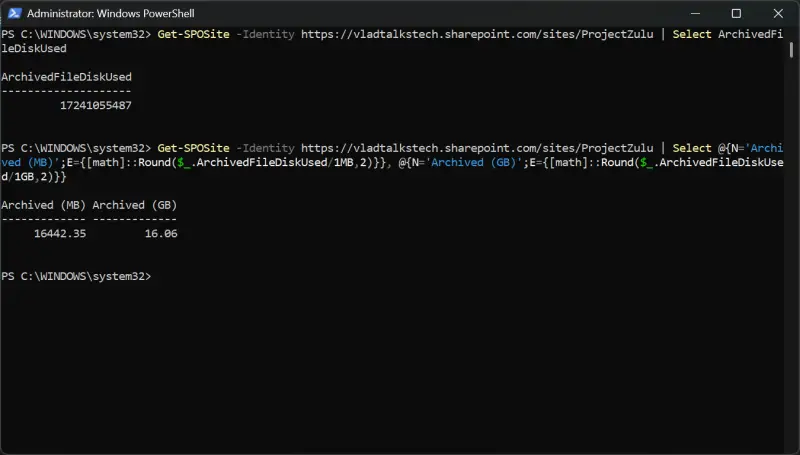
At the time of the webinar, admins could inspect archived storage through PowerShell. The ArchivedFileDiskUsed property returned by Get-SPOSite reports the site’s archived file storage in bytes. This example converts the value to megabytes and gigabytes:
Get-SPOSite -Identity https://contoso.sharepoint.com/sites/projects |
  Select @{N='Archived (MB)';E={[math]::Round($_.ArchivedFileDiskUsed/1MB,2)}},
         @{N='Archived (GB)';E={[math]::Round($_.ArchivedFileDiskUsed/1GB,2)}}
One reported site value was 17,241,055,487 bytes, which the command displayed as 16.06 GB. Green said archived gigabytes were expected to appear in the SharePoint admin center’s Active sites list in the following couple of months. His team was also looking at a view for site owners.
Start with a small group, then automate
Green recommended beginning with about a dozen sites whose owners are willing to try file-level archive. Check that their workflows still work as expected, and make sure users understand the Archived search filter and the reactivation delay. Once those teams are comfortable with retrieval and day-to-day use, administrators can expand through policies.
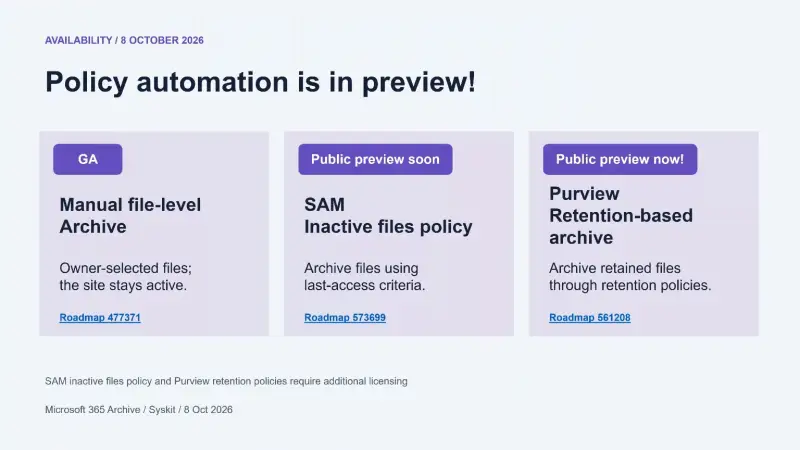
Two policy options were at different preview stages on October 8, 2026. Manual file-level archive was generally available.
- SharePoint Advanced Management inactive files policy: This policy archives files based on their last access date, so it can target content that people haven’t opened. It was approaching public preview, initially through PowerShell, with inactivity thresholds from 6 to 48 months. The feature is listed as roadmap item 573699.
- Purview retention-based archive: This option adds an archive step to retention policies and labels. It was in public preview and may fit organizations that already manage file lifecycles through retention. See roadmap item 561208.
Green said customers were already archiving hundreds of millions of files through the policies while they were still in preview. The licensing differs by route: manual file-level archive requires no additional license, though pay-as-you-go billing must be enabled. Retention-based archiving requires a Microsoft 365 E5 license, according to Microsoft’s documentation. Green also confirmed that a Copilot license includes SharePoint Advanced Management and the inactive files policy.
Storage costs and billing
Each tenant has a SharePoint storage pool of 1 TB plus 10 GB for each eligible license. Microsoft 365 Archive uses pay-as-you-go billing and charges for storage above that pool. There’s no separate archive license to buy; admins enable the service and connect an Azure subscription for billing.
The rates in Green’s example were $0.20 per GB per month for active storage and $0.05 per GB per month for archived storage. If a tenant uses 1,200 GB and has a 1,000 GB quota, the 200 GB overage costs $40 per month at the active rate or $10 per month when archived, a 75% reduction on that overage.
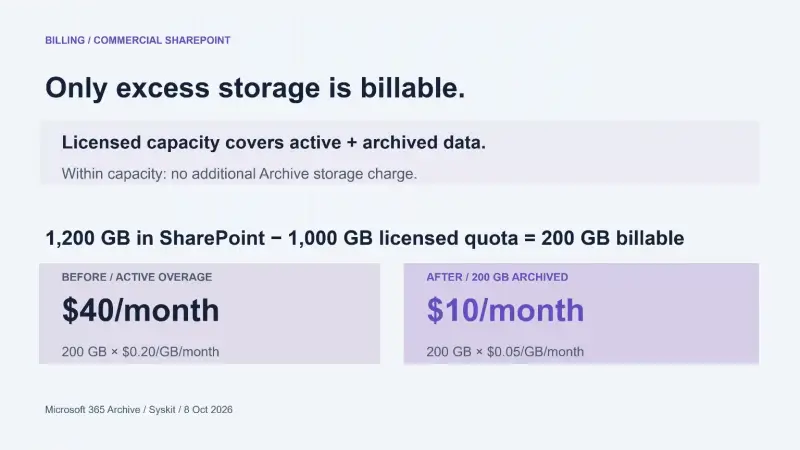
If total usage is 900 GB against a 1,000 GB quota, there’s no overage charge. If 800 GB of a 1,200 GB tenant’s data is archived, the bill still applies to the 200 GB above quota. Reactivation is free for licensed content; Microsoft removed the former site archive reactivation fee on March 31, 2025. The Microsoft 365 Archive pricing page describes the billing model.
Unlicensed OneDrive accounts are the exception to free reactivation. When an account becomes unlicensed, such as after an employee leaves, it is archived automatically. Reactivating that account costs $0.60 per GB at list price. Microsoft is also bringing file-level archive to OneDrive; reactivating files archived in a licensed OneDrive account will be free.
Green recommended pairing archive with SharePoint pay-as-you-go storage. Prepaid capacity packs can limit the savings: reducing usage below the amount already purchased doesn’t return the cost of that capacity. With both pay-as-you-go services enabled, the tenant pays for its overage at the applicable blended rate for active and archived storage.
Microsoft 365 SharePoint Storage was in public preview for commercial tenants from June 2026, with general availability planned for November 2026. Pay-as-you-go storage can also help prevent a tenant from entering read-only mode after exceeding its quota. Green said that without it, a tenant receives a warning and a short buffer period before the tenant becomes read-only, stopping sites and OneDrive accounts from adding content.
Admin checklist
For a first deployment, enable Microsoft 365 Archive and its pay-as-you-go billing, then choose which sites expose the Archive action. Pick a small group of site owners, test representative files, and explain how users find archived items and request reactivation. Track the preview status and licensing for each automatic policy before using it across more sites.
That staged rollout gives administrators a practical way to validate the access delay, search behavior and existing workflows. Archive is most useful when teams can identify inactive content, tolerate slower retrieval for that content, and keep their retention rules in force. Start with a file or a few test sites, measure the archived storage, and scale once the users and owners know what to expect.