- Subject
- Microsoft 365 & SharePoint
- Filed
- Source
- Tony Redmond
- Loans
- 596
Microsoft Purview Adds Audit Events for Portal Access Checks
New Purview audit records show role and scope checks, helping admins investigate access failures and report on who can reach portal solutions.
Purview access decisions become visible in the audit log
Microsoft Purview is adding audit records that show how the portal evaluates a user’s permissions when they try to open a solution. For tenant administrators, the practical value is a clearer record of why access was granted or blocked, including cases where a role is limited to particular resources.
The change is described in Microsoft 365 message center notification MC1473155, last updated 13 October 2026, and roadmap item 569363. It adds two operations to the audit stream: CheckUsersInRoles and CheckUserInRolesWithScopes. Both are recorded under the SecurityComplianceRBAC workload. Records appear only after the update is enabled for a tenant.
These events document permission checks, rather than serving as a general inventory of everyone who has a Purview role. They give administrators evidence of access evaluations as users enter Purview solutions. That can help narrow down whether a failed attempt stems from missing role membership or from a mismatch between a role’s assigned scope and the resource being accessed.
Role membership and scope checks
Purview access can depend on Microsoft Entra ID roles that apply across a tenant, Purview RBAC roles, or both. Some Purview RBAC assignments can be scoped to a subset of resources. For example, an eDiscovery manager assignment can be limited to specific eDiscovery cases. Microsoft’s guidance says Entra ID roles take precedence over RBAC roles when determining access; details are in the Purview permissions documentation.
The event name indicates which kind of evaluation Purview recorded. CheckUsersInRoles captures a role membership check. CheckUserInRolesWithScopes is used when the evaluation also needs to account for scope. For administrators, that distinction matters: a user might hold a relevant role but still lack permission for a particular case or other resource.
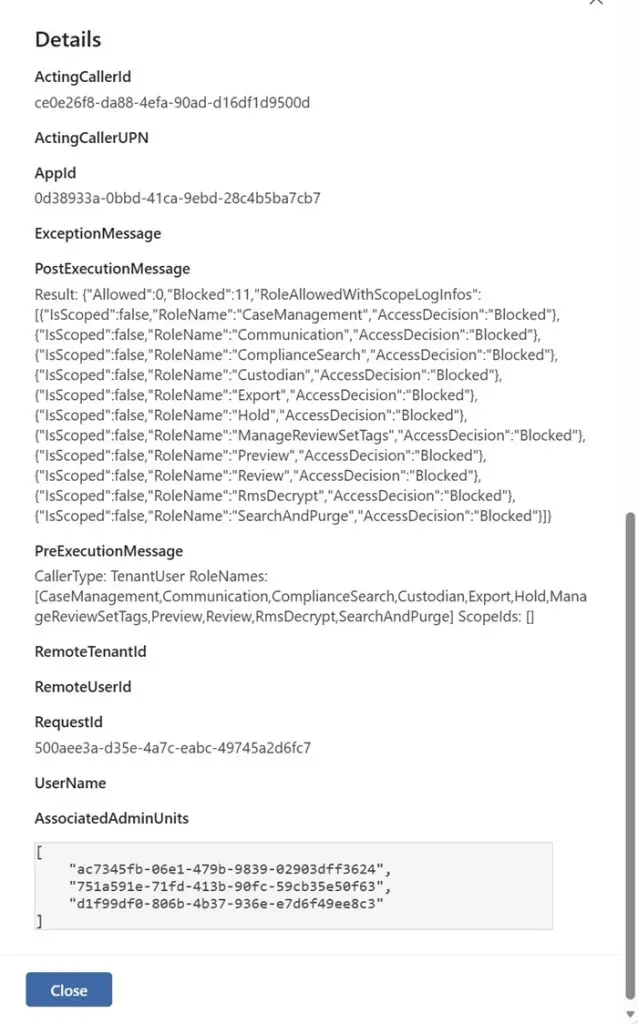
In one failed eDiscovery access check, the user lacked one of the required Entra ID or RBAC roles. The record’s PostExecution data showed that Purview blocked access for multiple roles required by eDiscovery. A successful check can instead include a PostExecutionMessage value like this:
Result: {"Allowed":2,"Blocked":0,"RoleAllowedWithScopeLogInfos":[{"IsScoped":false,"RoleName":"RoleManagement","AccessDecision":"Granted"},{"IsScoped":false,"RoleName":"ViewOnlyRoleManagement","AccessDecision":"Granted"}]}Here, the result reports two allowed roles and no blocked roles. The role details identify each role and its access decision, giving an administrator more context than a simple success or failure indicator.
Query the events for reporting
For occasional troubleshooting, an individual audit record may be enough. For a review across users or a date range, querying and organizing the records is more useful. The following Microsoft Graph PowerShell example submits an audit query covering the previous seven days and filters for both new operations:
$AuditJobName = ("Purview Access audit job created at {0}" -f (Get-Date -format 'dd-MMM-yyyy HH:mm'))
$AuditQueryStart = ((Get-Date).AddDays(-7).toUniversalTime().toString('yyyy-MM-ddTHH:mm:ss'))
$AuditQueryEnd = ((Get-Date).AddHours(1).toUniversalTime().toString('yyyy-MM-ddTHH:mm:ss'))
[array]$AuditOperationFilters = "CheckUsersInRoles", "CheckUserInRolesWithScopes"
$AuditJob = New-MgSecurityAuditLogQuery -DisplayName $AuditJobName -OperationFilters $AuditOperationFilters -FilterStartDateTime $AuditQueryStart -FilterEndDateTime $AuditQueryEnd
The query submits a job; the records become available for download after processing. Output from an AuditLogQuery Graph API job needs to be interpreted in the format returned by the method used to retrieve it. The representation can differ between Graph API requests and Microsoft Graph PowerShell SDK cmdlets. The example below expects records in the format produced by Get-MgSecurityAuditLogQueryRecord.
One limitation affects reporting: the audit record contains the user’s object identifier, so the sample makes a separate call to retrieve the user’s display name. It also looks up service principals to turn an application identifier into an app name. The role details are assembled with their access decisions, then included with the timestamp, user, operation and app name in each report row.
$Report = [System.Collections.Generic.List[Object]]::new()
# Get service principals to interpret app names
$SP = Get-MgServicePrincipal -All
ForEach ($Rec in $AuditRecords) {
$AuditData = $Rec.AuditData.additionalProperties
$Result = ($AuditData.PostExecutionMessage -replace '^Result:\s*') | ConvertFrom-Json
$User = Get-MgUser -UserId $Rec.UserId
$AppName = $SP | Where-Object {$_.AppId -eq $AppId} | Select-Object -ExpandProperty DisplayName
If ($null -eq $AppName) { $AppName = "Unknown app" }
[array]$RoleInfo = $null
ForEach ($Role in $Result.RoleAllowedWithScopeLogInfos) {
[string]$RoleOutput = ("{0} ({1})" -f $Role.RoleName, $Role.AccessDecision)
$RoleInfo += $RoleOutput
}
$ReportLine = [PSCustomObject]@{
TimeStamp = Get-Date $Rec.CreatedDateTime -format 'dd-MMM-yyyy HH:mm'
User = $User.displayName
Action = $Rec.Operation
Roles = $RoleInfo -join ", "
AppName = $AppName
}
$Report.Add($ReportLine)
}
$Report = $Report | Sort-Object {$_.TimeStamp -as [datetime]}
As written, the sample relies on an $AppId value when matching service principals; administrators should ensure that value is set to the application identifier they intend to resolve. The separate user lookup and service principal scan also add work for larger reports, so teams should account for that when processing many records.
What administrators should watch
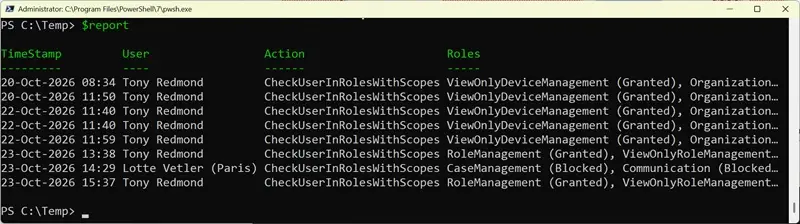
In the reported sample, no CheckUsersInRoles events had appeared; the captured access checks used CheckUserInRolesWithScopes. That observation may change as more tenants generate records. The reported app name was consistently “Protection Center,” an older name associated with the Purview portal, so administrators may see that label in results.
Deployment was scheduled to finish worldwide by the end of October. Once the records are available in a tenant, administrators can use them to investigate denied access, confirm which roles were evaluated, and build recurring reports on portal access. The useful next step is to include both operation names in audit queries and check that reports resolve user and app identifiers in a way the support team can interpret.