- Subject
- Microsoft 365 & SharePoint
- Filed
- Source
- Tony Redmond
- Loans
- 458
Entra ID Hard Deletion Protection Adds a Seven-Day Recovery Window
Entra ID can block permanent deletion of supported directory objects for seven days after soft deletion. The setting is permanent, so apply it selectively.
Entra ID’s Hard Deletion Protection adds a seven-day pause before a protected directory object can be permanently removed. For administrators, that window can help contain accidental deletions and deliberate attempts to erase important accounts or applications. The setting is permanent once enabled, though, so teams should decide which objects need it before applying it broadly.
What the seven-day window changes
When an administrator deletes an object through the Entra admin center or Microsoft Graph, Entra ID soft-deletes it. The object stays in the deleted-items recycle bin and can be restored for up to 30 days. Without protection, an administrator can also permanently delete it from that bin before the 30-day retention period ends. A hard-deleted object cannot be recovered.
Microsoft documentation for Hard Deletion Protection appeared on November 5. The feature uses the isHardDeleteProtectionEnabled property. An administrator must enable it while the object is active. If that object is later soft-deleted, attempts to hard-delete it are blocked for seven days. Once the window expires, permanent deletion is allowed as usual.
Restoring a protected object doesn’t clear the setting. If the object is deleted again after restoration, a fresh seven-day window begins. That makes the protection a persistent property of the object, rather than a one-time delay attached to a single deletion.
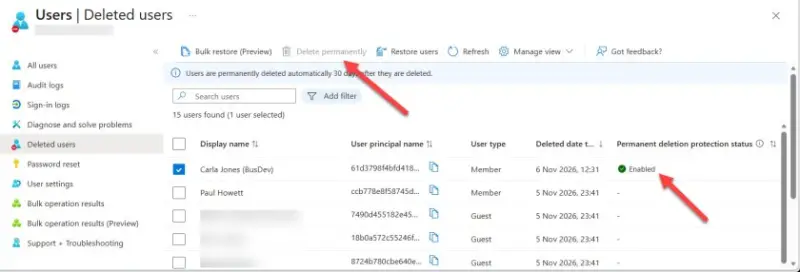
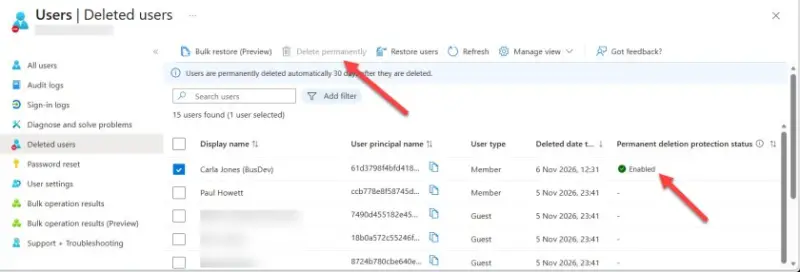
In the Entra admin center, the “Delete permanently” option is disabled when viewing a protected object under Deleted users. The directory view also shows the protection status in a dedicated column.
Which directory objects are supported
The feature currently covers four categories, with limits within each one:
- Cloud-only user accounts: Guest accounts are included. Accounts synchronized from on-premises Active Directory aren’t supported; their lifecycle is managed from the on-premises directory.
- Cloud-only groups: Microsoft 365 groups and security groups are supported. Mail-enabled security groups and distribution groups aren’t.
- Applications: This means app registrations owned by the tenant.
- Service principals: Enterprise app service principals can be protected, including those for Microsoft Graph PowerShell command-line tools. Service principals created for Azure Automation accounts aren’t supported.
The gaps matter when teams make a protection plan. In particular, Azure Automation service principals may be important to operations, but the feature doesn’t currently cover them. Administrators should check the supported object types before assuming that a directory-wide protection effort includes every dependency.
The intended safeguard is straightforward: reduce the chance that critical objects disappear permanently before someone can respond. It could give a team time to recover when an administrator deletes accounts by mistake, and it can slow an attempt to remove multiple administrator accounts. The seven-day period provides time to act; it doesn’t prevent an authorized hard deletion after that period.
Enable and check protection with Graph
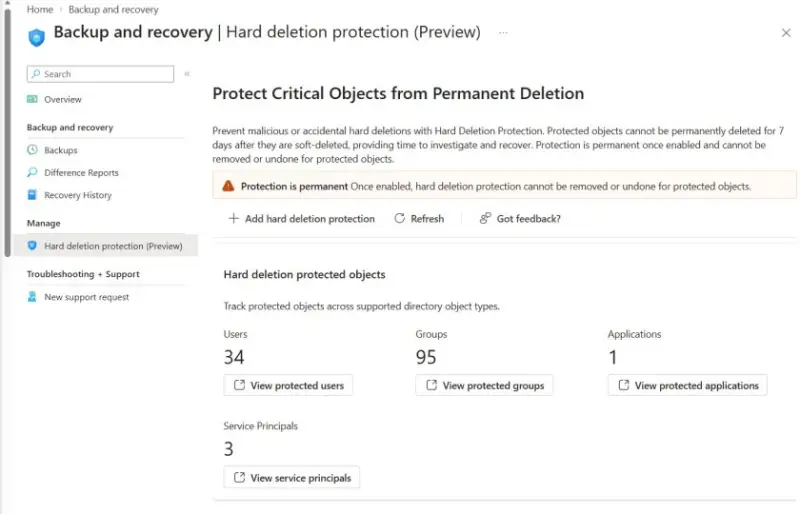
Administrators can enable the setting in the Backup area of the Entra admin center or update the property programmatically. The current Microsoft Graph PowerShell SDK version 2.41.2 doesn’t expose the setting fully in its metadata, so the examples rely on beta cmdlets and direct Graph requests.
For a user, the beta SDK cmdlet accepts the property through its body parameter:
$Params = @{
isHardDeleteProtectionEnabled = $true
}
Update-MgBetaUser -UserId [email protected] -BodyParameter $Params
A loop can apply the same setting to licensed member accounts that are enabled:
[array]$Users = Get-MgUser -Filter "assignedLicenses/`$count ne 0 and userType eq 'Member' and accountEnabled ne false" -ConsistencyLevel eventual -CountVariable UsersFound
ForEach ($User in $Users) {
Update-MgBetaUser -UserId $User.Id -BodyParameter $Params
}
This example doesn’t check whether the signed-in account can manage members of restricted management administrative units. Updates to objects outside its permissions can return errors. The source example also applies protection to tenant teams by updating their group objects:
[array]$Teams = Get-MgTeam -All
ForEach ($Team in $Teams) {
Update-MgBetaGroup -GroupId $Team.Id -BodyParameter $Params
}
Because Get-MgBetaUser doesn’t yet return the protection property, a direct beta Graph request can be used to inspect a user:
$Uri = "https://graph.microsoft.com/beta/users/[email protected]"
$Data = Invoke-MgGraphRequest -Uri $Uri -Method GET -OutputType PsObject
$data.isHardDeleteProtectionEnabled
To find protected, enabled member accounts, filter on the property:
$Uri = "https://graph.microsoft.com/beta/users?`$filter=isHardDeleteProtectionEnabled eq true and accountEnabled eq true and userType eq 'Member'"
$Data = Invoke-MgGraphRequest -Uri $Uri -Method GET -OutputType PsObject | Select-Object -ExpandProperty Value
$Data | Format-Table DisplayName, userPrincipalName
Invoke-MgGraphRequest doesn’t automatically follow @odata.nextLink. A query returning more than the first page needs pagination handling if the goal is to enumerate every matching object.
Deletion is blocked, but audit detail is limited
Attempts to hard-delete a protected object through Graph are rejected while the seven-day window remains active. In one example, Remove-MgDirectoryDeletedItem returned status 403 (Forbidden). The error identified the object and gave the window’s expiry as November 13, 2026 at 12:31:20 UTC.
The feature provides a useful safeguard, but its audit trail needs attention. Enabling protection generates an audit event, yet the event records a directory object update without clearly showing which property changed. Administrators can verify the property through Graph, but the audit record itself may not make a protection change easy to spot. Teams should account for that when reviewing changes and deciding how they’ll track which objects are protected.