- Subject
- Microsoft 365 & SharePoint
- Filed
- Source
- Tony Redmond
- Loans
- 381
Microsoft 365 Copilot DLP Rules Can Now Link Users to Custom Guidance
A new compliance URL lets tenants direct users blocked by Copilot DLP to internal guidance. Rule changes take about 30 minutes to sync.
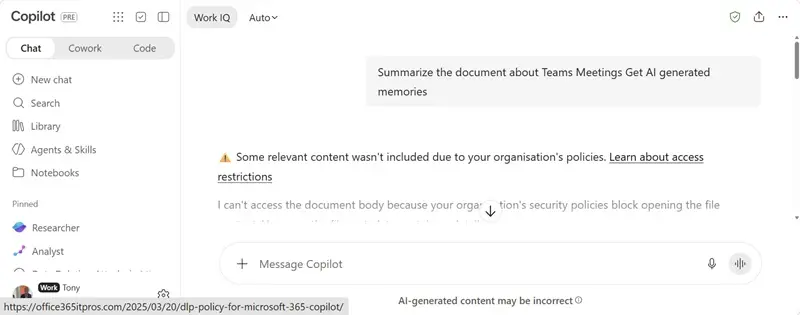
When Microsoft 365 Copilot can’t access content because of a Data Loss Prevention (DLP) rule, tenants can now choose where the user goes for more information. The new compliance URL option lets administrators point users to organization-specific guidance or support. Microsoft’s message text remains fixed, but the destination link can reflect how the tenant handles its own policies.
The capability is available worldwide, according to message center notification MC1478467, dated 24 September 2026. It applies wherever a Copilot integration or app displays a message about content blocked by DLP, rather than only to Copilot Chat.
What users see when DLP blocks content
Copilot may use documents and other content to ground a response. If a DLP rule prevents access to a relevant item, Copilot can tell the user that some content wasn’t included because of organizational policy. The new setting changes the destination of the link at the end of that message. It doesn’t change the message wording or override the rule that blocked access.
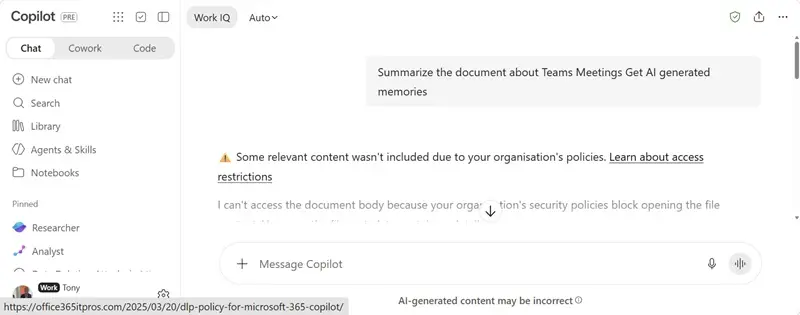
Previously, the link sent users to Microsoft’s DLP documentation. Tenants couldn’t replace that destination. With the new option, administrators can send users to their own compliance guidance, data governance resources or support information. Microsoft continues to control the text shown in the access message.
That distinction matters operationally. A general explanation can help users understand why Copilot didn’t use a document, but local guidance can tell them which team handles questions and where to find the relevant internal instructions. Administrators should make sure the chosen destination is accessible to the affected users and explains the policy in terms they can act on.
Configure the compliance URL in a rule
The custom link is configured in a DLP rule for Copilot. The rule must be set to display policy tips; administrators can then enable the option to show a custom compliance URL under the policy tips settings.
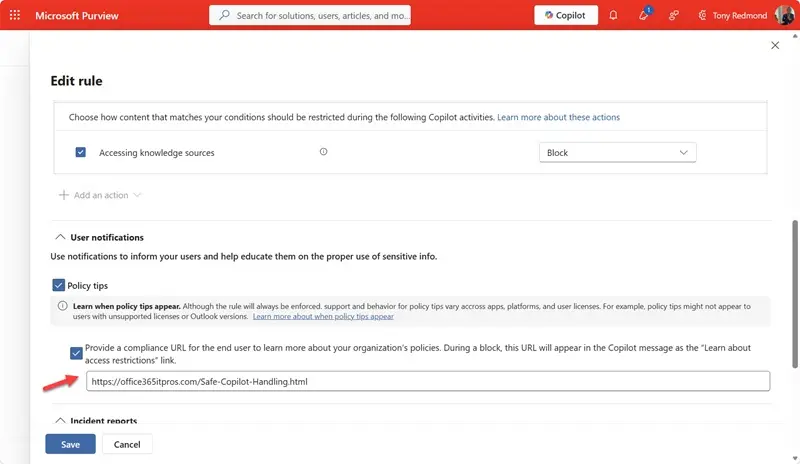
After saving the rule, allow about 30 minutes for the change to become active. That timing reflects the reduction in tenant DLP synchronization time described in MC1317834: synchronization that previously took roughly two hours now takes about 30 minutes. The faster timing is currently in public preview, and general availability is scheduled for December 2026. Once the updated rule is active, a Copilot attempt to access blocked content produces a message with the configured link.
Where multiple DLP rules match a Copilot action, the link shown comes from the “winning rule.” This means a user could see different guidance depending on which rule applies. To make the experience predictable, administrators should consider using the same compliance destination across their Copilot DLP rules, especially when those rules cover related content or user scenarios.
What administrators should check
Before changing rules, identify the destination that best supports users who encounter a block. It might explain the organization’s handling of restricted content, direct users to a support channel, or describe what to do when they believe a block is unexpected. Keep the page aligned with the actual policy behavior; the message link can guide users, but it doesn’t give them access to the blocked item.
Then review which Copilot DLP rules display policy tips and whether each should use the custom URL. Since the winning rule determines the link when several rules match, test the intended user experience against the rules that can apply to the same action. Allow for the roughly 30-minute synchronization period before judging whether a saved change has taken effect.
Microsoft’s recent extension of Copilot DLP coverage to Office files stored outside Microsoft 365 storage locations broadens the content scenarios where these controls may matter. The custom link works across Copilot integrations that show blocked-content messages, so tenants should account for the full range of affected apps when preparing their guidance.
Changing the destination is optional: tenants can keep directing users to Microsoft’s documentation. For organizations with established internal support and compliance material, a tailored link can make the block easier to understand and give users a clearer next step. The practical task is to select a useful destination, apply it consistently, and check the message after the rule has synchronized.