- Subject
- Microsoft 365 & SharePoint
- Filed
- Source
- Tony Redmond
- Loans
- 876
SharePoint Online Auto-Label Policy Extends Default Sensitivity Labels to Existing Files
A new Purview policy can label older SharePoint files across up to 10 sites, helping close protection gaps in libraries with default labels.
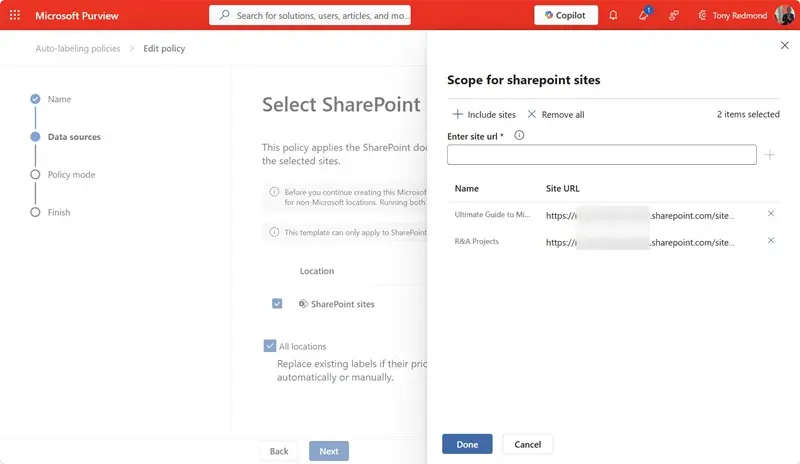
SharePoint Online can now apply a document library’s default sensitivity label to eligible existing files, including files that have not been edited since the default was set. The new Microsoft Purview auto-label policy addresses a gap in the existing feature: previously, older files generally needed user activity before SharePoint applied the library’s default label.
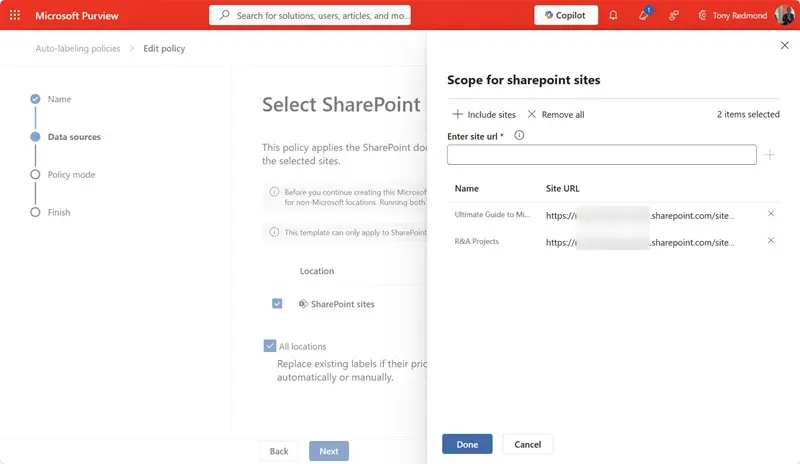
For administrators, the change offers a way to extend existing labeling coverage across selected sites without relying on users to open and save files. Its reach is limited, though: a tenant can have one such policy, and it can process no more than ten SharePoint Online sites at a time.
How default labels work
Microsoft added support for default sensitivity labels on SharePoint Online document libraries in 2022. When a library has a default label, SharePoint applies it to files added to the library and to files modified afterward. For files already there, the previous behavior depended on later activity: an unlabeled file could receive the default label when edited, and a file with a lower-priority label could receive the library’s higher-priority default.
That approach helps reduce the chance that users forget to label new or updated documents. It leaves a coverage gap, however, when older files remain untouched. A confidential document sitting in a library before the default was configured could stay without the intended label indefinitely if nobody modified it.
Default sensitivity labels are a premium capability. The source identifies Microsoft 365 E5, or equivalent compliance and protection add-ons, as licensing that includes the required Information Protection capabilities. Administrators should confirm that their tenant’s licensing covers the feature before planning a rollout.
What the new Purview policy does
Message center notification MC1477181, dated 22 September 2026, described the special auto-label policy for applying SharePoint library defaults to existing files. A Purview Information Protection background job scans the sites selected in the policy, finds document libraries that have default sensitivity labels, and applies each library’s default to eligible files that are missing it.
The policy can also be configured to replace labels with a lower priority than the library’s default. This applies whether the existing label was assigned manually or automatically. That setting gives administrators a way to bring older files into line with the library’s chosen default, while making the priority of that default consequential for files that already carry another label.
Each site added to the policy must contain at least one document library configured with a default sensitivity label. If a site does not meet that requirement, Purview reports that it cannot verify the default label. Administrators should check that the library defaults are in place before adding sites, so policy configuration does not stall on an avoidable validation error.
Only file formats that support sensitivity labels are in scope. The supported formats described are Office files and PDFs. Other content in the selected sites should not be assumed to receive a label through this policy.
Files that may need another processing pass
The background scan cannot label every file it encounters immediately. A file may be unavailable while processing runs because it is open, locked, or checked out. Files protected with double-key encryption or user-defined permissions can also be inaccessible to the job.
Those cases matter when teams assess coverage. A file missed during one pass may be processed later, and the described process uses multiple passes. The expected result is that almost every file in a library should eventually be protected, but administrators should not treat the first scan as proof that every eligible file has been labeled. Checking coverage after processing, especially for libraries with restricted or frequently edited files, will help identify items that still need attention.
Plan around the ten-site limit
Only one policy of this type can exist in a tenant, and it covers a maximum of ten sites at a time. The account configuring it must hold either the Compliance administrator or SharePoint administrator role. The limit makes target selection the main operational constraint: administrators will need to prioritize which sites receive processing first.
Sites with highly confidential information that lacks other protections are likely candidates. The source points to Restricted Content Discovery as an example of a separate control relevant to limiting AI-driven disclosure. Sensitivity labels can also apply encryption; files carrying such labels are blocked from processing by third-party AI tools such as the Microsoft 365 Connector for Claude. That makes the policy relevant to teams reviewing how older files are protected when AI tools may access organizational content.
Microsoft’s suggested workaround is to let the policy process one group of up to ten sites, then update it with another group and repeat until the relevant sites have been covered. This can extend labeling beyond the initial ten, but it requires administrators to rotate sites through the policy. Purview background processing can take time, so repeated batches may be tedious and make the overall effort difficult to schedule precisely.
The special policy is generally available. Administrators can review Microsoft’s documentation on applying default sensitivity labels to existing files for the configuration details. The practical starting point is to confirm licensing, identify libraries with defaults, select the first ten sites, and allow for follow-up checks as background processing works through files that were unavailable during earlier passes.