- Subject
- Microsoft 365 & SharePoint
- Filed
- Source
- Tony Redmond
- Loans
- 535
Exchange Online EWS Retirement Set for April 1, 2027: What Admins Should Check
Exchange Online will retire EWS on April 1, 2027. Review the usage report and app IDs, then plan replacements before affected apps stop working.
Exchange Online applications that still depend on Exchange Web Services (EWS) have a firm deadline: Microsoft plans to retire EWS from Microsoft 365 on April 1, 2027. After that date, an application that uses EWS to communicate with Exchange Online will stop working. For administrators, the immediate task is finding those dependencies while there’s still time to identify owners and arrange replacements.
Microsoft describes the retirement as part of its effort to reduce attack surface and move customers to newer APIs. The security case is not abstract: EWS was used to exfiltrate data from Microsoft’s own tenant during the Midnight Blizzard attack in January 2024, as Microsoft’s account of the incident describes. The retirement date gives organizations a fixed point for migration planning, even if some applications have been quietly relying on EWS for years.
Find dependencies before users report failures
EWS use can be difficult to spot when application inventories are incomplete. A dependency may belong to an older application moved from an on-premises environment during a migration, a client add-on, or a custom tool built by a team that has since left the organization. If nobody owns the code or remembers how the application works, identifying a replacement can take longer than the technical change itself.
Microsoft says affected applications may fail in different ways. Users might see repeated credential prompts or an error that says EWS is unavailable. A critical workflow could therefore appear to break suddenly, even though the underlying cause is the planned service change. Administrators will need to trace the failure to the application, establish who supports it, and determine whether its vendor or internal developers can provide an updated version.
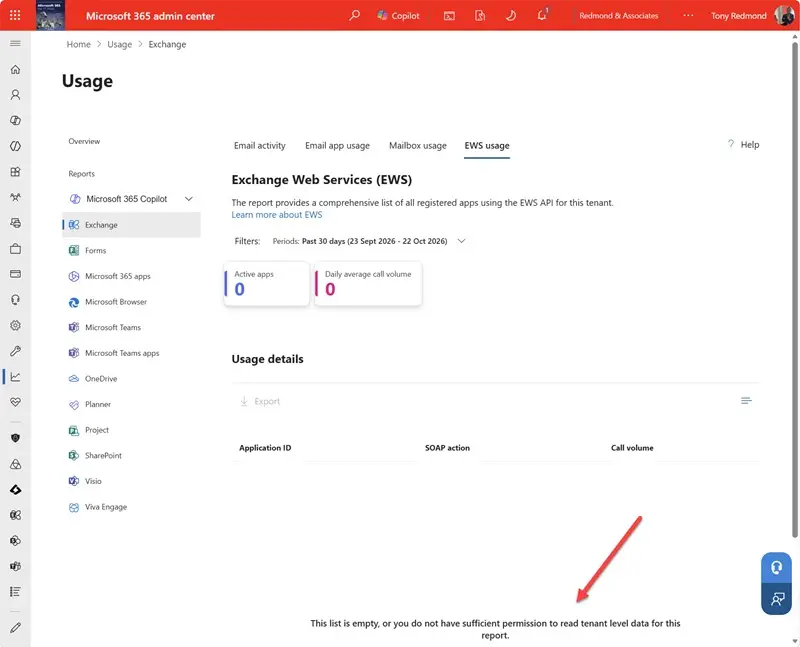
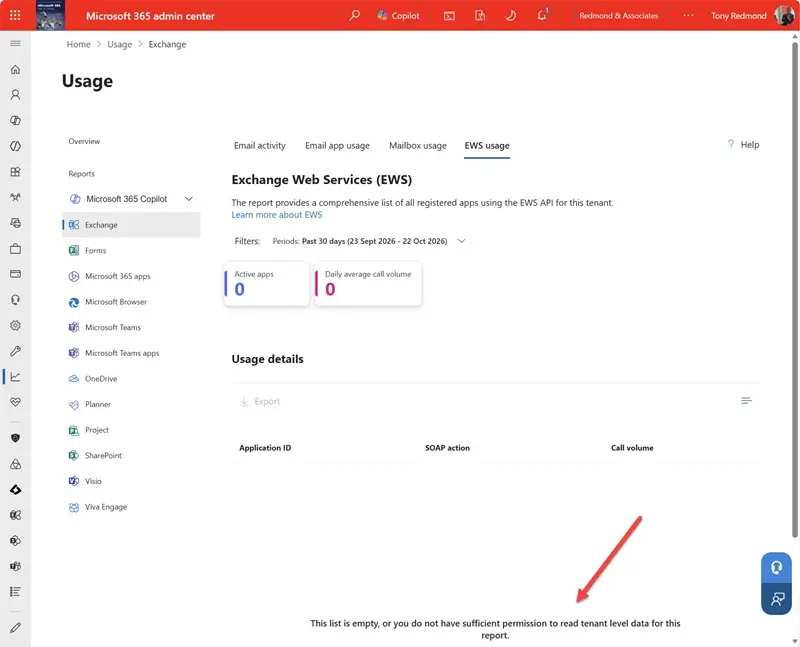
Start with the EWS usage report in the Microsoft 365 admin center and the application identifiers associated with EWS activity. The report can show which applications are still making requests, giving teams a practical starting point for investigation. An empty report suggests there’s no recorded usage to act on there; populated results need to be matched to application names, business owners and support contacts.
Microsoft says it has populated the EwsAllowedAppIDs allow list with applications detected using EWS during the previous 60 days. Administrators can review those identifiers and add others when needed. Changes to the list can take up to 24 hours to take effect. The list may help expose dependencies that weren’t visible in a local inventory, though administrators still need to work out what each identifier represents and whether the associated application remains in use.
A third-party tool described by Brendan Nolan-Cattanach can help resolve application identifiers to EWS application names. It may be useful when the report contains identifiers that administrators can’t readily identify. The author of the original account said they hadn’t used or assessed the tool, so teams should evaluate it for themselves before relying on it. Microsoft’s EWS usage report remains a direct place to review tenant activity.
Disabling EWS can reveal gaps in the inventory
Microsoft plans to warn tenants before disabling EWS. The message center notice is expected to say, “Action may be required: EWS will be disabled in your tenant in 7 days,” followed by confirmation that “EWS has been disabled in your tenant.” Administrators should monitor these messages and use the advance notice to check whether any reported applications support important work.
If disabling EWS causes an application to fail, administrators can re-enable EWS through Baseline Security Mode settings in the Microsoft 365 admin center or by changing the tenant configuration with Exchange Online PowerShell. That option can provide temporary breathing room while teams investigate a break in service. It doesn’t change the April 1, 2027 retirement date, so restoring access should be treated as time to complete remediation rather than a permanent fix.
The practical risk is that an organization may discover an EWS dependency only after access has been disabled. In that situation, administrators have to diagnose the application, find someone able to maintain it, and decide whether it can be upgraded or needs replacement. Identifying the owner and technical path now can reduce the chance that those decisions land in the middle of an operational problem.
Plan the move away from EWS
For applications maintained in-house, the source identifies Microsoft Graph as the modern API route for developers to consider. Teams need to assess each application’s needs and arrange development work to update its code. For third-party products, the next step is to check with the vendor about an EWS-free version or replacement. The available options will depend on the application; the retirement guidance doesn’t promise that every product has a ready substitute.
Administrators should connect the usage report and allow-list entries to named owners, then track each dependency through investigation and remediation. That means distinguishing active business applications from obsolete or unrecognized entries, confirming support arrangements, and leaving time for development or product changes. Where an application’s purpose or owner is unclear, the report is a lead to investigate rather than proof that the application can safely be ignored.
The deadline is clear, and temporary re-enablement won’t extend it. Tenant teams that already have a complete EWS inventory can use the remaining time to finish their migrations; teams without one should start by reviewing recent usage and resolving the application IDs they find. Once April 1, 2027, arrives, EWS won’t be available to client applications connecting to Exchange Online.