- Subject
- Microsoft 365 & SharePoint
- Filed
- Source
- Tony Redmond
- Loans
- 855
Track Exchange Online Mail Flow Rule Suppressions Beyond 10 Days
A weekly Azure Automation runbook can preserve mail flow rule counts in SharePoint, giving admins a longer view of suppressed messages by spam domain.
Exchange Online’s mail flow rule report has a short memory: Get-MailDetailTransportRuleReport returns activity for only the previous 10 days. For administrators who want to track suppressed messages over months, the practical answer is to collect the report regularly and keep the results somewhere persistent.
The approach described here uses an Azure Automation runbook to gather the previous seven days of suppression data each week, then adds the results to a CSV file in a SharePoint Online document library. That gives an operations team a growing record of message counts by spammer domain, ready for analysis in Power BI or another reporting tool.
Why keep a longer record?
A mail flow rule can delete inbound messages from known spammer domains before those messages reach users. In the configuration described, the rule suppresses email from 95 domains. The domain list needs ongoing attention because spammers change domains and tactics, but deleting known spam directly has a user-facing benefit: people don’t receive notifications about messages placed in quarantine.
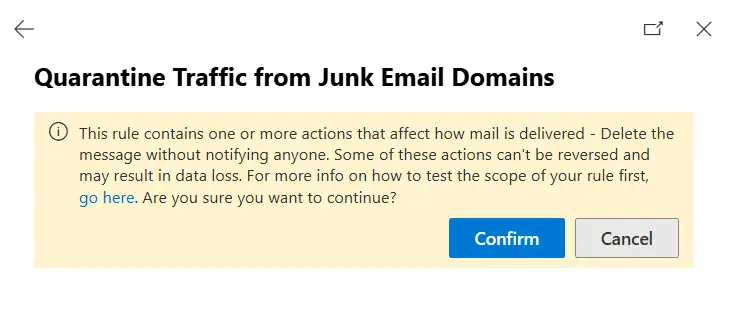
That makes the rule’s activity worth measuring. Counts over time can help administrators see how much mail it suppresses and which domains account for that volume. The Exchange admin center also displays a caution when administrators add or change a mail flow rule that affects delivery, as shown below.
The reporting limit matters here. Get-MailDetailTransportRuleReport can’t retrieve earlier rule activity once it falls outside its 10-day window. Get-MessageTraceV2 also returns up to 10 days of data per request, but that information can be collected in multiple periods to reach back 90 days. The mail flow rule report has no equivalent way to fetch older periods after the fact. A scheduled job therefore needs to capture the data while it remains available.
Collect the data weekly
The runbook’s weekly schedule collects seven days of report data, then updates a CSV stored in a SharePoint Online document library. Repeating that process builds a history that can be queried or visualized later. The result is useful for trend reporting because the report’s short retention window no longer determines how much history the team can examine.
The script is available in the Microsoft 365 GitHub repository. Its interactive version uses Microsoft Graph PowerShell SDK cmdlets to locate, download and update the CSV file. Those file cmdlets work in delegated and app-only sessions, but the article’s runbook implementation encounters a known Azure Automation issue with the Microsoft.Graph.Files module. The problem was still present in Graph SDK version V2.40, identified as the latest “good” version in the account.
For the runbook, the script must connect to Exchange Online and Microsoft Graph with a managed identity, then use raw Graph API requests for SharePoint file operations. That change lets the automation upload a new CSV or retrieve the existing file before adding the latest results.
Replacing file cmdlets with Graph requests
For example, the SDK version uploads a file with Set-MgDriveItemContent:
$TargetLocation = "$FolderPath/$SpammyEmailHistoricalFile"
$SpamFileItem = Set-MgDriveItemContent -DriveId $Drive.Id -DriveItemId $TargetLocation -InFile $ExportedSpamDataFile -ErrorAction Stop
The corresponding upload uses Invoke-MgGraphRequest and a Graph API URL:
$Uri = "https://graph.microsoft.com/v1.0/drives/$($Drive.Id)/root:/$($TargetLocation):/content"
$SpamFileItem = Invoke-MgGraphRequest -Uri $Uri -Method PUT -InputFilePath $ExportedSpamDataFile -ContentType "application/octet-stream" -ErrorAction Stop
Downloading the existing CSV follows the same pattern. The SDK call is:
Get-MgDriveItemContent -DriveId $Drive.Id -DriveItemId $SpamFileItem.id -OutFile $DownloadPath -ErrorAction StopThe Graph request version is:
$Uri = "https://graph.microsoft.com/v1.0/drives/$($Drive.Id)/items/$($SpamFileItem.Id)/content"
Invoke-MgGraphRequest -Uri $Uri -Method GET -OutputFilePath $DownloadPath -ErrorAction Stop
Microsoft documents the reporting command in the Exchange PowerShell reference. Details of the Azure Automation problem are tracked in a Microsoft Graph PowerShell SDK issue.
Allow time to validate the API calls
Changing SDK cmdlets to Graph requests takes more than swapping command names. The request URL, HTTP method, file paths and response handling all need to match the operation, and some trial and error may be needed before the runbook behaves as expected. Administrators should validate the automation’s connections and file access in their own setup before relying on the weekly history.
Some developers choose to use Connect-MgGraph to establish a session and then make Graph API requests directly. That approach retains a convenient way to obtain and manage access tokens, while avoiding SDK cmdlets that may fail in a particular environment. It also gives up SDK features such as automatic retries and simpler pagination.
For Microsoft 365 administrators accustomed to PowerShell, SDK cmdlets can still be easier to work with where they function reliably. The key operational decision is to confirm that the modules and commands work in the actual Azure Automation runtime. For this reporting task, scheduled collection is what preserves the record; the file operations need to be implemented in a way that the runbook can execute consistently.