- Subject
- Excel & Power BI
- Filed
- Source
- Frédéric LE GUEN
- Loans
- 405
Excel TEXT Function: Keep Date Formats When Joining Text
Excel converts dates to serial numbers when you join them to text. Use TEXT with a date format code to create readable labels.
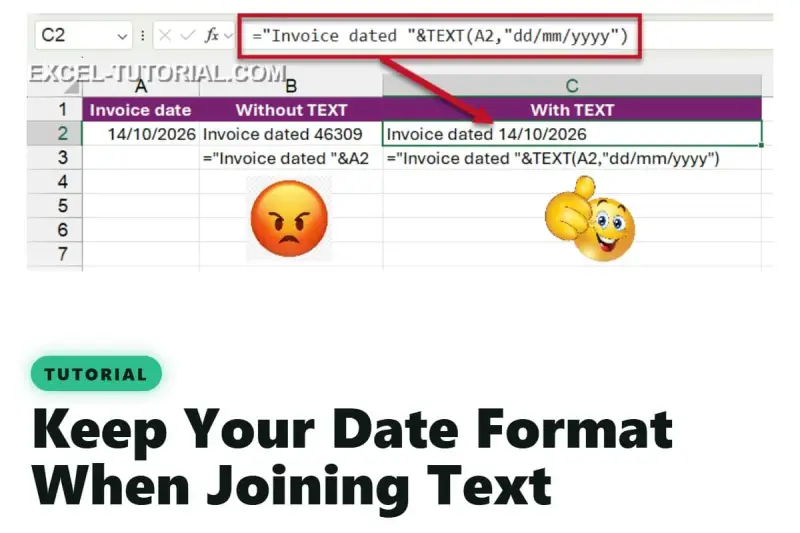
When a formula joins a date to a label, the result can look like “Invoice dated 46309” instead of a readable date. Excel is using the date’s underlying number in the combined text. Wrap the date value in TEXT and specify how it should appear.

Why a date turns into a number
Excel stores dates as serial numbers: each date corresponds to a number of days counted from 1 January 1900. A cell’s number format controls how that value appears on the worksheet. The stored value stays numeric, even when the cell displays a date such as 14/10/2026.
Joining a cell to text uses its value, not its display format. For example, if A2 contains a date, a formula such as ="Invoice dated "&A2 may return “Invoice dated 46309.” The number is the date’s serial value; it hasn’t replaced or damaged the date in A2.
The same behavior can affect other formatted numbers. A currency value displayed as $1,250.00 can appear as 1250 in joined text, while a percentage displayed as 12% can become 0.12. In each case, the cell’s display format doesn’t automatically carry into the text result. Excel’s number formats are covered in its Number Format in Excel guide.

Use TEXT to choose the displayed date
The TEXT function converts a value to text using a format code you provide. Put it around the date cell in the formula:
="Invoice dated "&TEXT(A2,"dd/mm/yyyy")
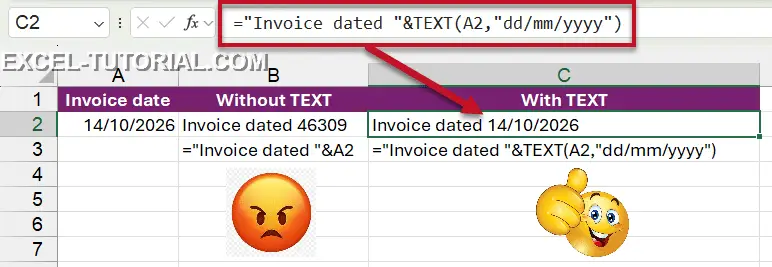
If A2 contains the date represented by serial number 46309, this formula returns Invoice dated 14/10/2026. The exact appearance depends on the format code inside TEXT. The code dd/mm/yyyy asks Excel to show a two digit day, a two digit month and a four digit year.

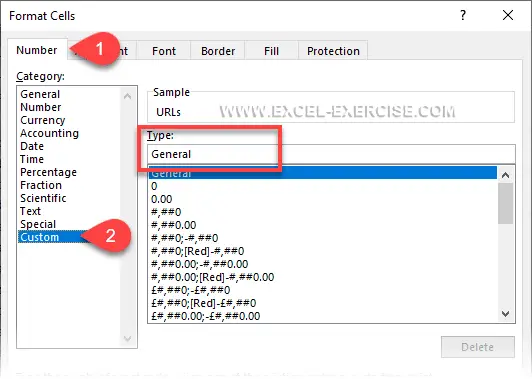
You can use the same date format codes available in the Format Cells dialog. Select a cell and press Ctrl + 1, then open Number > Custom to see or enter a custom code. The function’s format argument gives you control over how a value appears inside the resulting text.
In date codes, d represents the day, m the month and y the year. Repeating a letter changes how much detail appears. For example, a code can show a short or long day, a numeric or named month, and a two digit or four digit year. The same stored date can therefore produce different text for an invoice label, a report heading or a chart caption. Excel’s date format guide describes the available codes.

Keep the result’s type in mind
TEXT returns text. That makes it useful when a date needs to be read as part of a phrase, but the result is no longer a date value for calculations. If you need to sort dates chronologically, calculate intervals, or use the date in another date calculation, keep the original date value in its own cell. Use the TEXT result for presentation, such as a sentence, title or chart label.
This distinction matters when building a larger formula. A readable label may be the right output for a report, while a numeric date is the right input for formulas that compare dates or calculate durations. Keeping those purposes separate makes later calculations easier to maintain.
Check language settings when sharing formulas
Format codes can depend on the language of the Excel installation. In French Excel, for example, the date code uses jj/mm/aaaa rather than dd/mm/yyyy. A formula moved between Excel installations with different language settings may not interpret the code as intended; the result can contain literal text such as “14/mm/yyyy.”
If a workbook will be used in different language environments, check the TEXT format argument after sharing it. Confirm that the result displays the expected day, month and year before relying on the joined text in a report or document.
Choose the right tool for the output
For a readable date inside joined text, use TEXT to set the date’s appearance explicitly. For calculations, retain the underlying date value. That simple choice keeps labels clear while preserving dates for the formulas that depend on them.