- Subject
- Microsoft 365 & SharePoint
- Filed
- Source
- Frédéric LE GUEN
- Loans
- 424
Excel CONCAT vs. CONCATENATE: Range Support and Version Compatibility
CONCAT accepts cell ranges, while CONCATENATE remains useful for older Excel versions. Check compatibility before sharing workbooks.
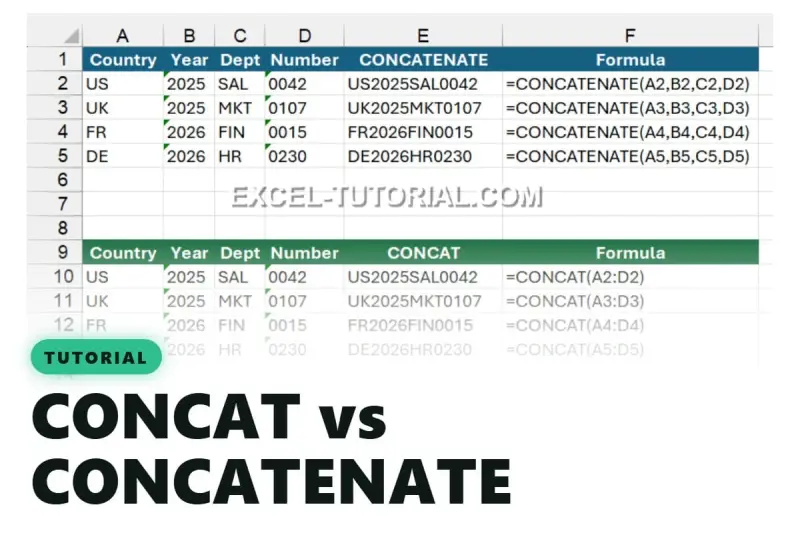
The practical difference between Excel’s CONCAT and CONCATENATE functions is range support. CONCAT can join a range in one argument; CONCATENATE requires each cell to be named separately. That can make newer formulas shorter, but teams sharing workbooks still need to account for older Excel versions that don’t recognize CONCAT. The choice is less about which function is newer and more about how the workbook is built, who needs to open it, and what the joined text should look like.

One range replaces a list of cell references
With CONCATENATE, joining the values in cells A2 through D2 means listing each cell:
=CONCATENATE(A2,B2,C2,D2)
CONCAT can take the whole range as a single argument:
=CONCAT(A2:D2)

Both formulas join the text in those four cells. The difference becomes more useful as the range grows: a formula covering twenty columns can refer to one range with CONCAT, while CONCATENATE would need twenty cell references. Fewer references make the formula easier to read and reduce the chance of leaving out or mistyping one of them. This is a practical benefit when formulas are copied across rows or reviewed by someone who didn’t write the workbook. A range reference also makes the intended scope visible at a glance, although it doesn’t remove the need to check which cells the range includes.
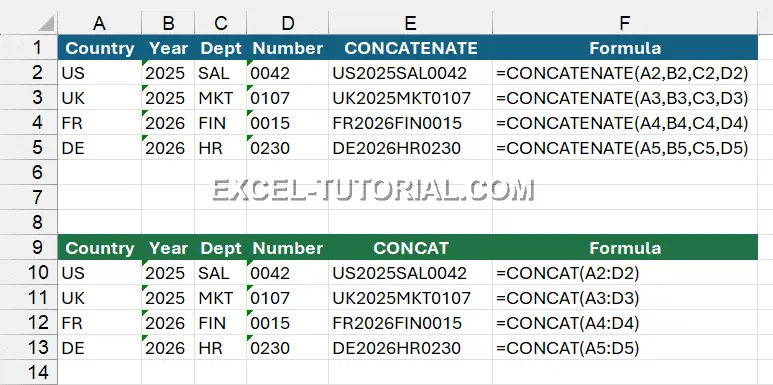
A quick way to remember the distinction: CONCATENATE takes individual values, while CONCAT can take a range. The shorter function name also makes for a shorter formula when you’re joining a block of cells. This is more significant than it looks when a workbook contains repeated formulas, because simpler references are easier to inspect and maintain.
Existing CONCATENATE formulas can stay
Microsoft retains CONCATENATE so workbooks that already use it continue to work. No removal date has been announced, so there’s no need to replace existing formulas just because CONCAT is available. Microsoft describes CONCATENATE as replaced and points its documentation toward CONCAT, which makes CONCAT the natural choice when writing a new formula for compatible Excel versions. That wording can prompt teams to wonder whether old formulas have become a problem. The information here doesn’t support that conclusion: continued availability means existing workbooks don’t need a conversion project on that basis alone.
For administrators and spreadsheet owners, this is a maintenance decision rather than a repair task. A workbook with CONCATENATE formulas doesn’t need a rewrite solely to use the newer function. If you’re adding formulas, choose based on the Excel versions used by everyone who needs to open the file. Replacing a working formula also creates an opportunity for mistakes, so the expected benefit should be clear before changing many sheets. Here's the thing: consistency within a workbook can be more useful than switching functions for appearance’s sake.

Check the Excel version before sharing
CONCAT is available in Excel 2019, Microsoft 365 and Excel for the web. CONCATENATE works in older Excel versions as well. That difference matters when a workbook moves between colleagues, departments or customers with different software. A workbook’s author may only see the formula in a compatible version, while recipients encounter it in a different desktop release. Function support is therefore part of workbook portability, alongside the data and formatting the file contains.
For example, a recipient using Excel 2016 may see #NAME? for a CONCAT formula because that version doesn’t recognize the function. If the workbook must work with Excel 2016, use CONCATENATE or the & operator for broad compatibility. The & operator joins text directly, such as =A2&B2. That approach is straightforward for a small number of cells, though a long chain of references can become harder to read and edit. If you're working in this space, test shared templates in the oldest Excel version the intended audience uses.
When a workbook has a known audience and everyone uses a compatible version, CONCAT’s range argument can make formulas simpler. When the workbook will circulate across mixed versions, compatibility should guide the choice. It’s also useful to check the formula requirements before distributing a template: a function that works on its creator’s computer may not be recognized by every recipient. A quick compatibility check can prevent confusion later, especially when users mistake an unsupported function for a damaged workbook.
Use TEXTJOIN when separators or blank cells matter
CONCAT and CONCATENATE join values without adding a separator between them. If the result needs a space, comma or another delimiter between items, TEXTJOIN is the relevant option. It can also skip empty cells, which can help when joining a range that may contain blanks. The distinction matters because joining values directly can produce text that runs together, while a delimiter can preserve the boundaries between names, labels or other field contents. TEXTJOIN’s handling of blank cells also gives the formula writer a way to decide how empty entries should affect the result.
That makes the choice depend on what the formula needs to do. Use CONCAT for a compatible workbook when you want to join a range directly. Keep CONCATENATE in existing files, or consider it for workbooks that must open in older versions. Use TEXTJOIN when the output needs a delimiter or blank cells should be skipped. For Excel 2016 compatibility, the & operator remains another option. No single function is automatically right for every workbook; the output format and version requirements determine the sensible choice.
Before changing a shared workbook, check which Excel versions its users have and whether the output needs separators. Those two checks will usually settle the choice without requiring a broad formula replacement.
What this means for shared workbooks
Formula choice is a small design decision with consequences for anyone who inherits or receives the file. A shorter formula can be easier to audit, but only if recipients’ software recognizes it and the resulting text meets the workbook’s purpose. The operational risk is modest, yet avoidable: unsupported functions can leave users with errors, and formulas without delimiters can create ambiguous output. And yet. The fix is usually simple when the author checks compatibility and output requirements before distributing the workbook.
For teams maintaining templates, documenting the minimum Excel version and the intended output can save repeated troubleshooting. That doesn’t require a formal migration plan for every spreadsheet. Keep working CONCATENATE formulas where they already serve their purpose, choose CONCAT for new formulas when the audience supports it, and use TEXTJOIN when separators or blank handling are part of the requirement.