- Subject
- Excel & Power BI
- Filed
- Source
- Frédéric LE GUEN
- Loans
- 596
Build and Validate Email Addresses from Names in Excel
Use LOWER, LEFT and TRIM to generate consistent addresses, then check special characters and duplicates before using the list.
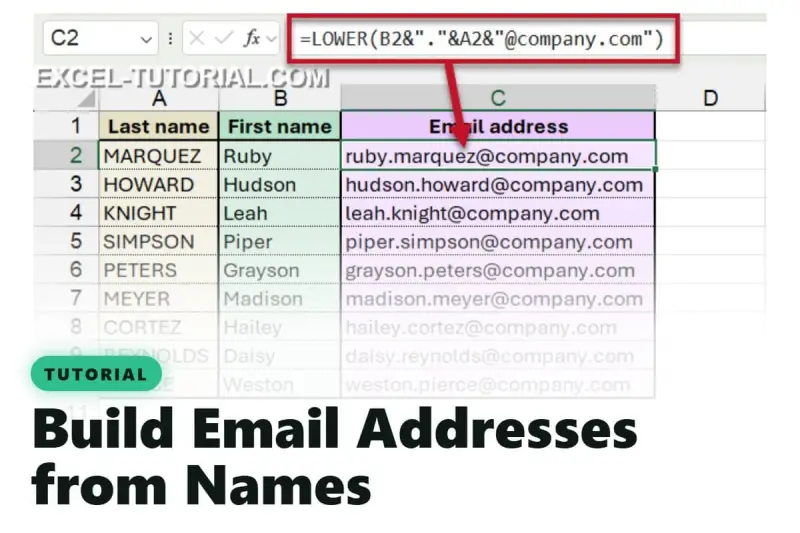
Generating email addresses from a staff list takes one formula, but getting a usable list takes a little more care. Excel can combine first and last names, apply a consistent lowercase format and fill a column quickly. Spaces, accents, compound names and duplicate results can still produce addresses that need review.

Build the full-name format
Assume last names are in column A and first names are in column B. To create addresses in the form [email protected], enter this formula in the first row of the output column:
=LOWER(B2&"."&A2&"@company.com")
For Ruby Marquez, the result is [email protected]. Fill the formula down to generate addresses for the remaining rows. The & operator joins the first name, period, last name and domain into one text string. LOWER then converts the complete result to lowercase.
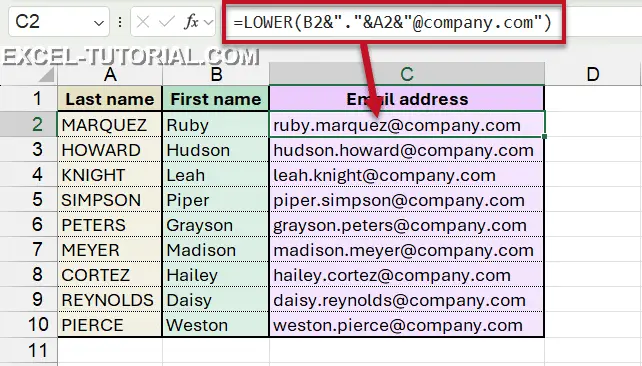
Because the formula refers to row 2, copying it down adjusts the references for each row. Keep the domain text consistent across the formula. If the company’s address pattern changes, update that part before filling the column.

Use an initial instead of the full first name
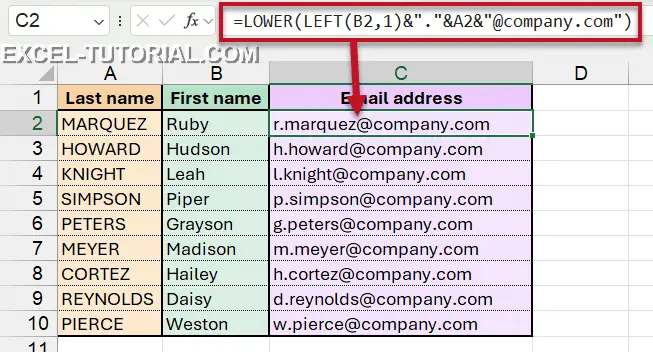
For a format such as [email protected], use LEFT to return the first character in B2:
=LOWER(LEFT(B2,1)&"."&A2&"@company.com")
LEFT(B2,1) takes one character from the start of the first name. The rest of the formula follows the same pattern as the full-name version, and LOWER still applies to the entire address.
When Flash Fill is enough
For a one-time list, Excel’s Flash Fill can infer the pattern from examples. Type the first two addresses in C2 and C3, such as [email protected] and [email protected]. Select the cells to fill, such as C2:C10, then choose Home > Fill > Flash Fill or press Ctrl + E. Excel uses the examples to complete the entries. For the initial format, enter an example such as [email protected].

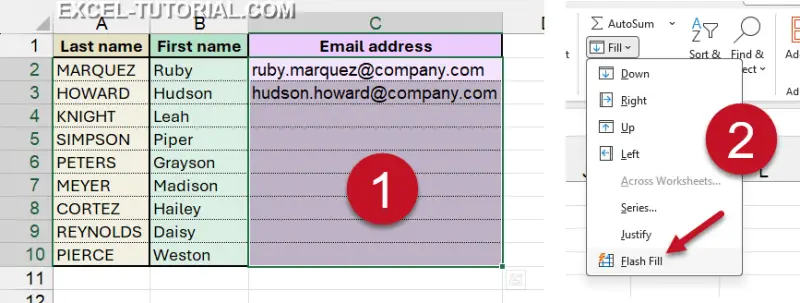
Flash Fill places values in the cells, so the results don’t recalculate when names change or new people are added. You’ll need to run it again to reflect updates. A formula is a better fit for a list that changes, since its results update when the referenced names change. More examples of Flash Fill are available in this guide to extracting text with Flash Fill.
Clean spaces and characters before using the results
Names copied from another system may contain extra spaces, including trailing spaces that are hard to see. If B2 contains “Ruby ” with a space after the name, a basic formula can produce ruby [email protected]. Wrap both name cells in TRIM to remove extra spaces:
=LOWER(TRIM(B2)&"."&TRIM(A2)&"@company.com")
LOWER handles uppercase letters but leaves accents intact. For example, the names Thảo Trần become thảo.trầ[email protected]. Some mail systems may not accept addresses with those characters, so check the required naming convention before building addresses from names with accents.
SUBSTITUTE can replace specific characters. For example:
=SUBSTITUTE(SUBSTITUTE(A2,"ầ","a"),"ả","a")
This example replaces two characters in A2. A separate SUBSTITUTE call is needed for each character, so a long list of replacements can make a formula difficult to maintain. When names contain more than three or four characters that need changing, use a helper column to clean the names first. That keeps the address formula readable and makes the changes easier to inspect.
Set a clear rule for compound names as well. De La Cruz includes spaces, while Mary-Jane contains a hyphen. Decide which characters the address format should retain or remove, then apply that rule consistently with SUBSTITUTE.
Check for duplicate addresses
Two people with the same name, such as John Smith, produce the same address under this pattern. Check the generated column for duplicates before using the list. A duplicate check can reveal collisions that are easy to miss by scanning rows; see this Excel duplicate-checking method.
For a list that changes, build addresses with formulas, clean imported names, and review duplicates before use. For a fixed, one-time list, Flash Fill can save setup time, but its values need to be regenerated when the source names change.